



Aveți o întrebare despre programul Collected by Lexmark? Răspunsul îl găsiți în secțiunea Întrebări frecvente. Acesta include toate informațiile necesare pentru a naviga pe platformă, de la urmărirea comenzii dvs. până la resetarea parolei.
ÎNTREBĂRI FRECVENTE DESPRE PROGRAMUL DE COLECTARE A CARTUȘELOR
Cum pot returna cartușele folosite?
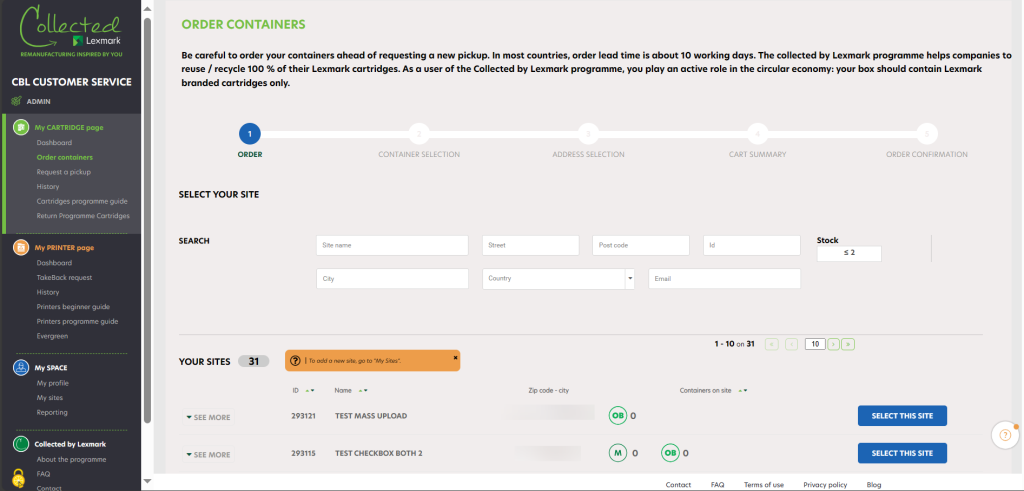
To order new containers for your company, click on « Order containers ». The list of your companies is displayed. Thanks to the search engine you can easily find a company by typing its name and its zipcode.
You can see the number of each box type that you have in stock (it depends on the country allowance). In case you see two figures such as 1+1, it means that you have 1 box in stock and 1 box in pending order in your cart.
Select the chosen company and on the right side, by clicking on « Select this site ». You can check the information about your companies by clicking on the button « See more » on the left.
 |
A container order is already in progress for this company, you will not be able to order new ones until you’re received your order. |
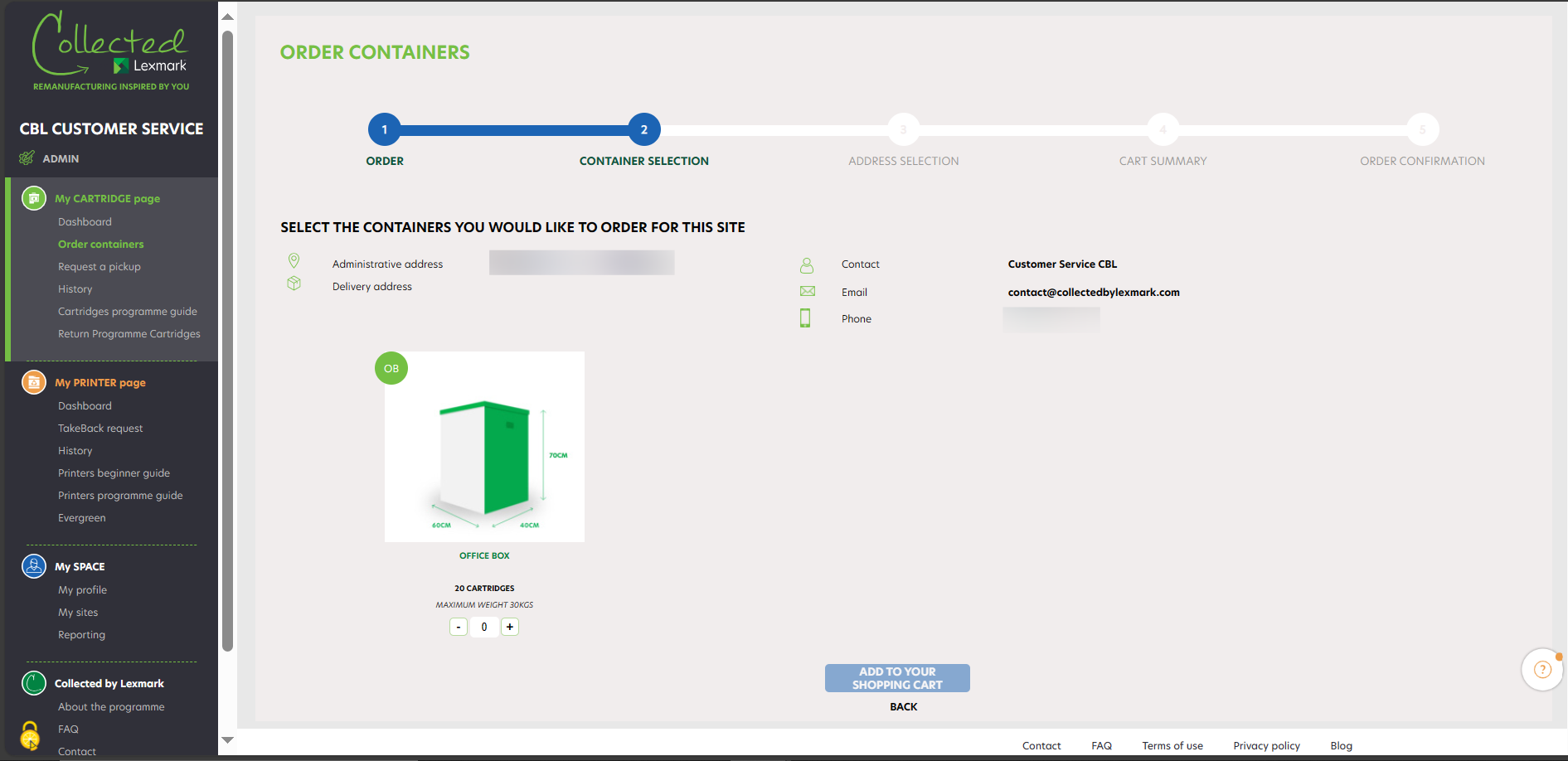
After clicking on « Select this site », you reach the second step of the process where you can choose the size and quantity of containers you need to have delivered. Click on « Add to your shopping cart » to go to the next step. Your order is placed in the shopping cart. You can see at which step you are in the order process thanks to the advanced progression bar.
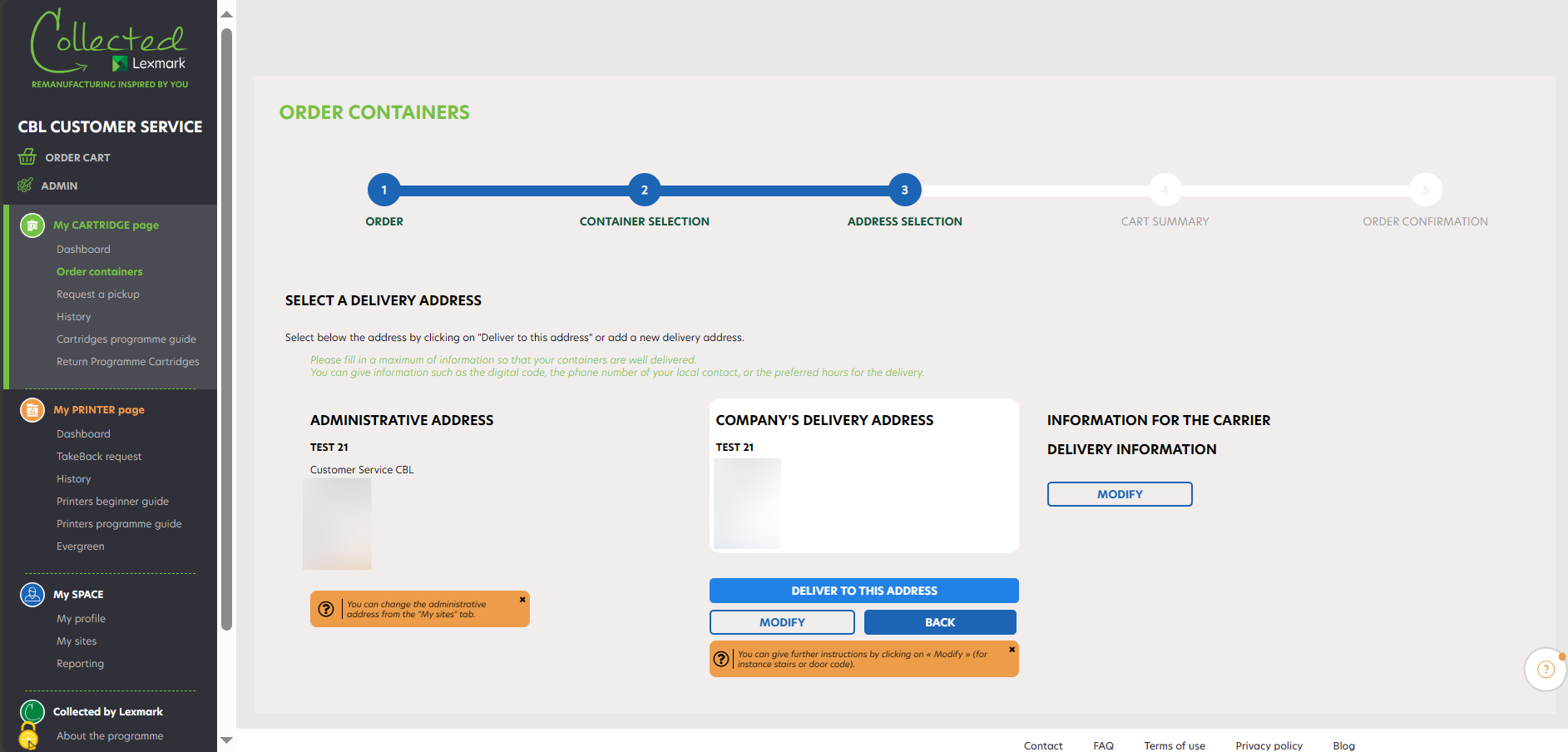
At step 3, you find your delivery details (company name, administrative address and company’s delivery address). You can modify the delivery address simply by clicking on « Modify », and go on with the process by clicking on « Deliver to this address ».
At step 4, you find your order details (company name, number of containers to be delivered). You can modify by clicking on « MODIFY » or delete the request by clicking on the bin. Once you click on « Confirm order », your order request is sent. If you want to add another order for another site, you can click on « ADD AN ORDER FOR ANOTHER SITE ».
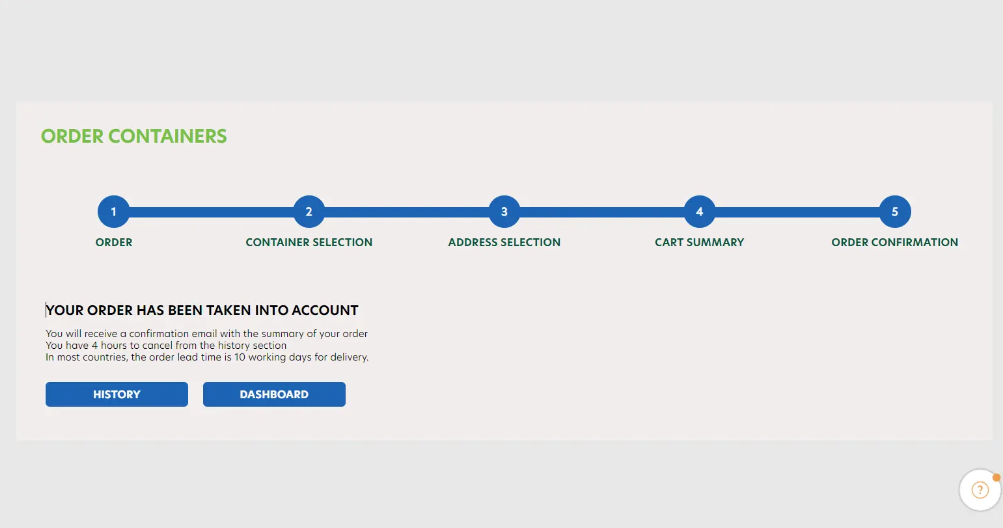
Once your order is processed, you receive an order confirmation email with the details of your order within 24h. You can modify or delete your order within the next 4 hours on the history page.
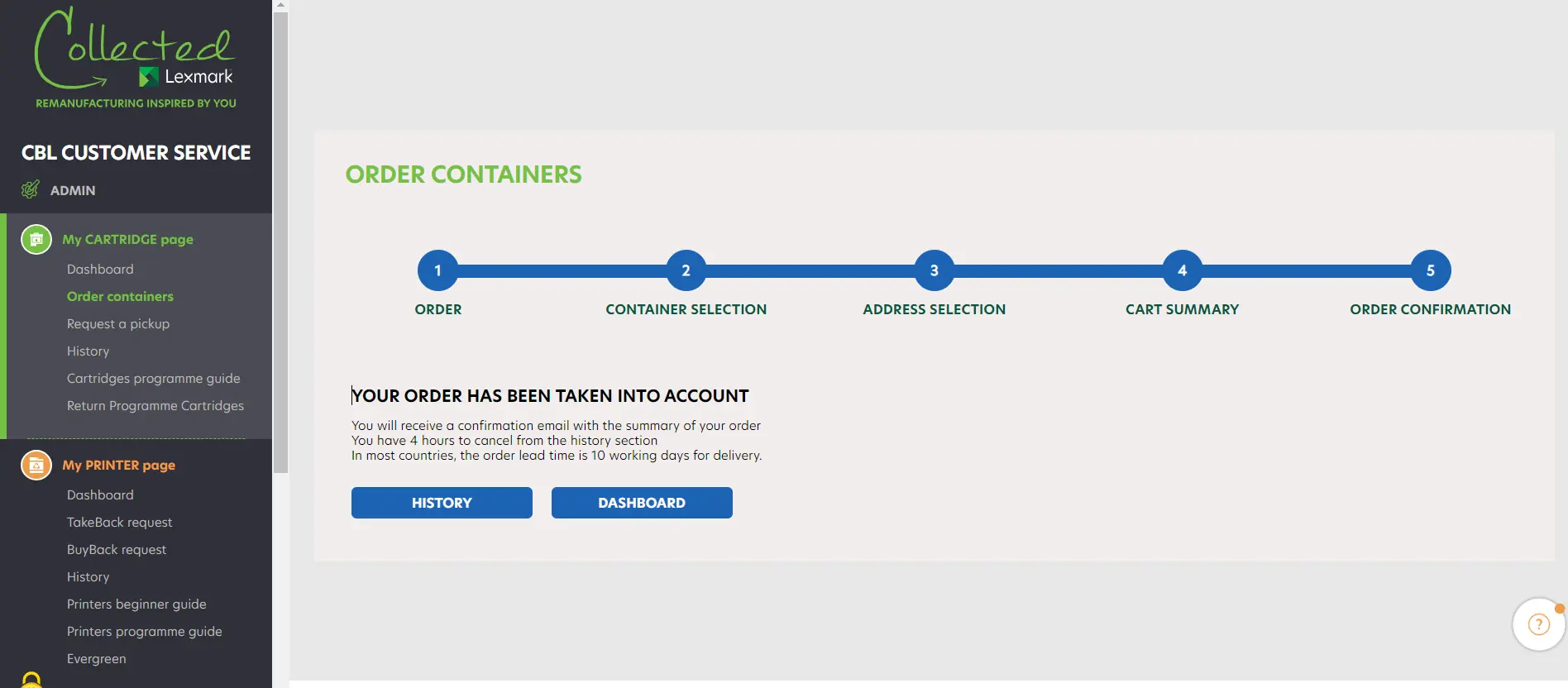
At any step of this process you can go back to the previous step by clicking on the « Back » button . Moreover, if you go back to the first step, your order is still registered in your cart. Therefore, you can resume it at any time.
Este posibil să descarc o etichetă pentru a-mi returna cartușele fără a comanda un container?
Lexmark is making great strides in resources preservation while helping you reduce waste. The Collected by Lexmark programme comes on top of our legal obligations.
Our customers can drop off their cartridges at their nearest WEEE collection points, but should they want to play an active part in the circular economy they can support this programme.
Collectively, we can help tackle resources scarcity and help increasing the number of remanufactured products. Therefore, our circular economy programme is built for bulk returns, not individual returns to stay consistent with the environmental preservation.
Offering a single return label would imply more printer paper and plastics, more transportation thus more pollution.
Instead, Lexmark offers to individual users a small box which can fit in up to 4 cartridges. It is the small container option for consumers willing to favour reuse over recycling.
Nu găsesc referința imprimantei mele.
The printer references (printer serial number) are located inside the printer cover when you open it to change your cartridges or at the back of the printer.
Este acest program gratuit?
Collected by Lexmark is the web platform that enables medium and large companies to participate into LCCP (consumption from 10 cartridges per year). It’s free of charge and facilitates the collection management of the cartridges at their end of life and helps their remanufacturing before they are fully recycled. The Collected by Lexmark programme enhances all stakeholders corporate social responsibility’s strategy and helps the participation of our customers in the circular economy.
Cum pot comanda un container?
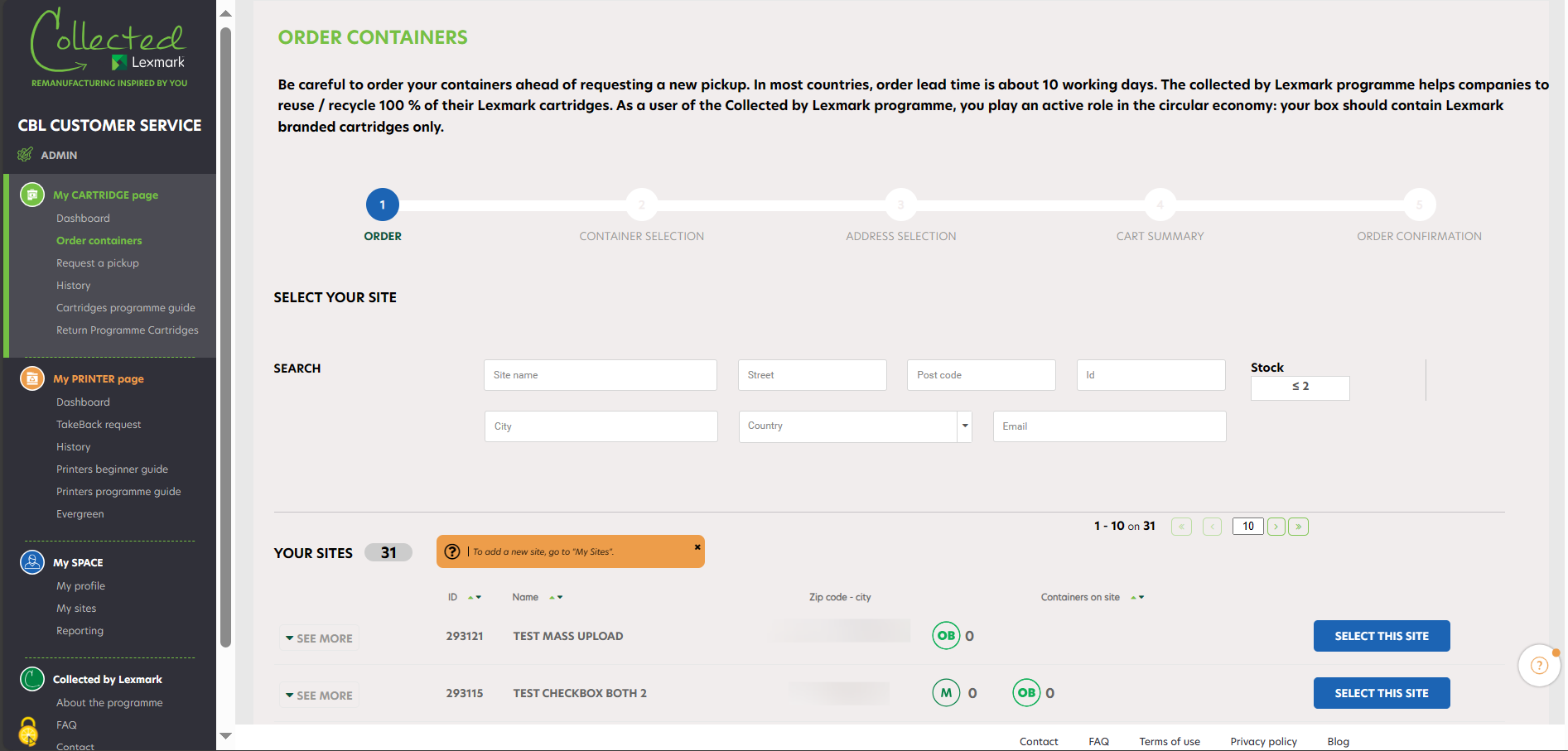
To order new containers for your company, click on « Order containers ». The list of your companies is displayed. Thanks to the search engine you can easily find a company by typing its name and its zipcode.
You can see the number of each box type that you have in stock (it depends on the country allowance). In case you see two figures such as 1+1, it means that you have 1 box in stock and 1 box in pending order in your cart.
Select the chosen company and on the right side, by clicking on « Select this site ». You can check the information about your companies by clicking on the button « See more » on the left.
|
A container order is already in progress for this company, you will not be able to order new ones until you’re received your order. |
After clicking on « Select this site », you reach the second step of the process where you can choose the size and quantity of containers you need to have delivered. Click on « Add to your shopping cart » to go to the next step. Your order is placed in the shopping cart. You can see at which step you are in the order process thanks to the advanced progression bar.
At step 3, you find your delivery details (company name, administrative address and company’s delivery address). You can modify the delivery address simply by clicking on « Modify », and go on with the process by clicking on « Deliver to this address ».
At step 4, you find your order details (company name, number of containers to be delivered). You can modify by clicking on « MODIFY » or delete the request by clicking on the bin. Once you click on « Confirm order », your order request is sent. If you want to add another order for another site, you can click on « ADD AN ORDER FOR ANOTHER SITE ».
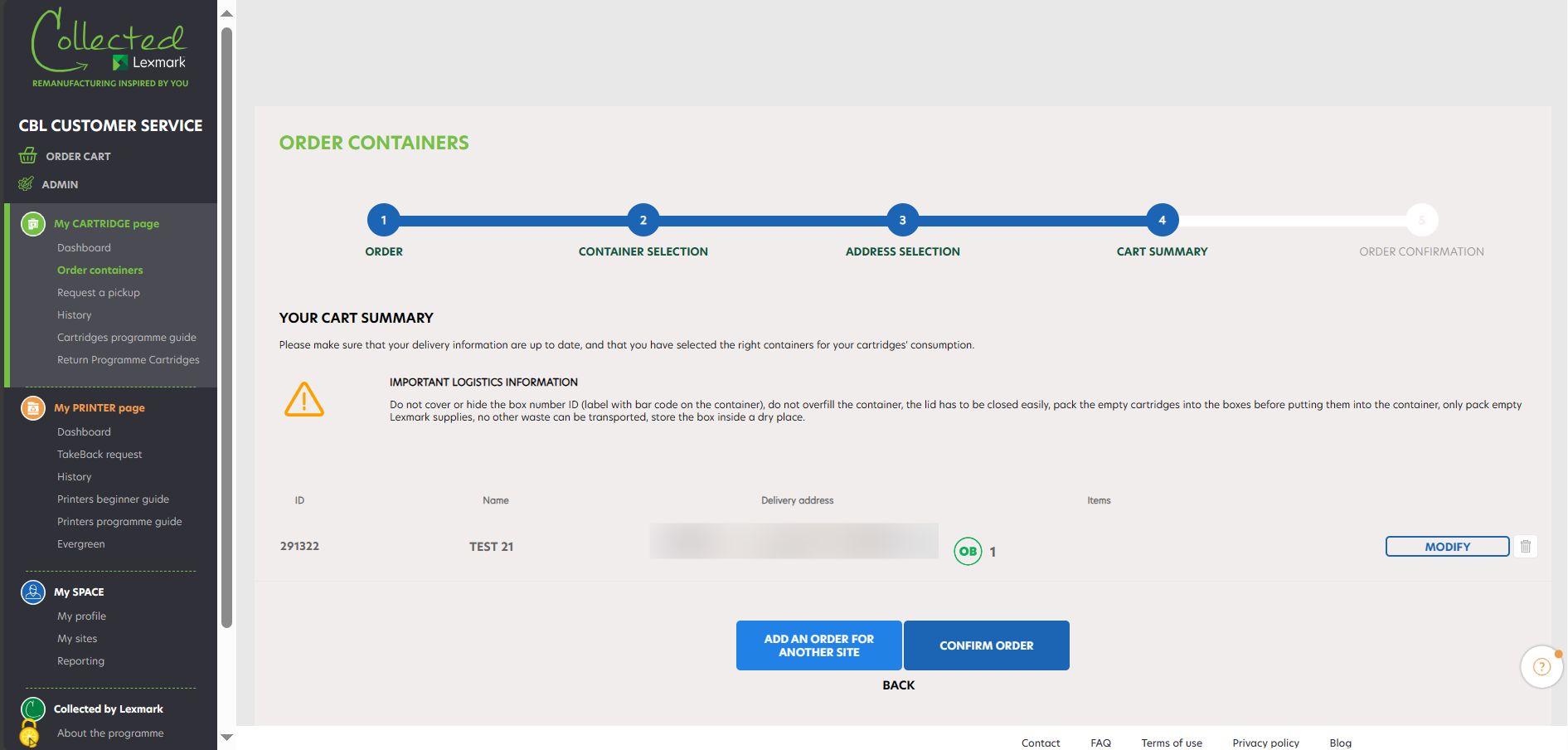
Once your order is processed, you receive an order confirmation email with the details of your order within 24h. You can modify or delete your order within the next 4 hours on the history page.
At any step of this process you can go back to the previous step by clicking on the « Back » button . Moreover, if you go back to the first step, your order is still registered in your cart. Therefore, you can resume it at any time.
Cum pot solicita o preluare?
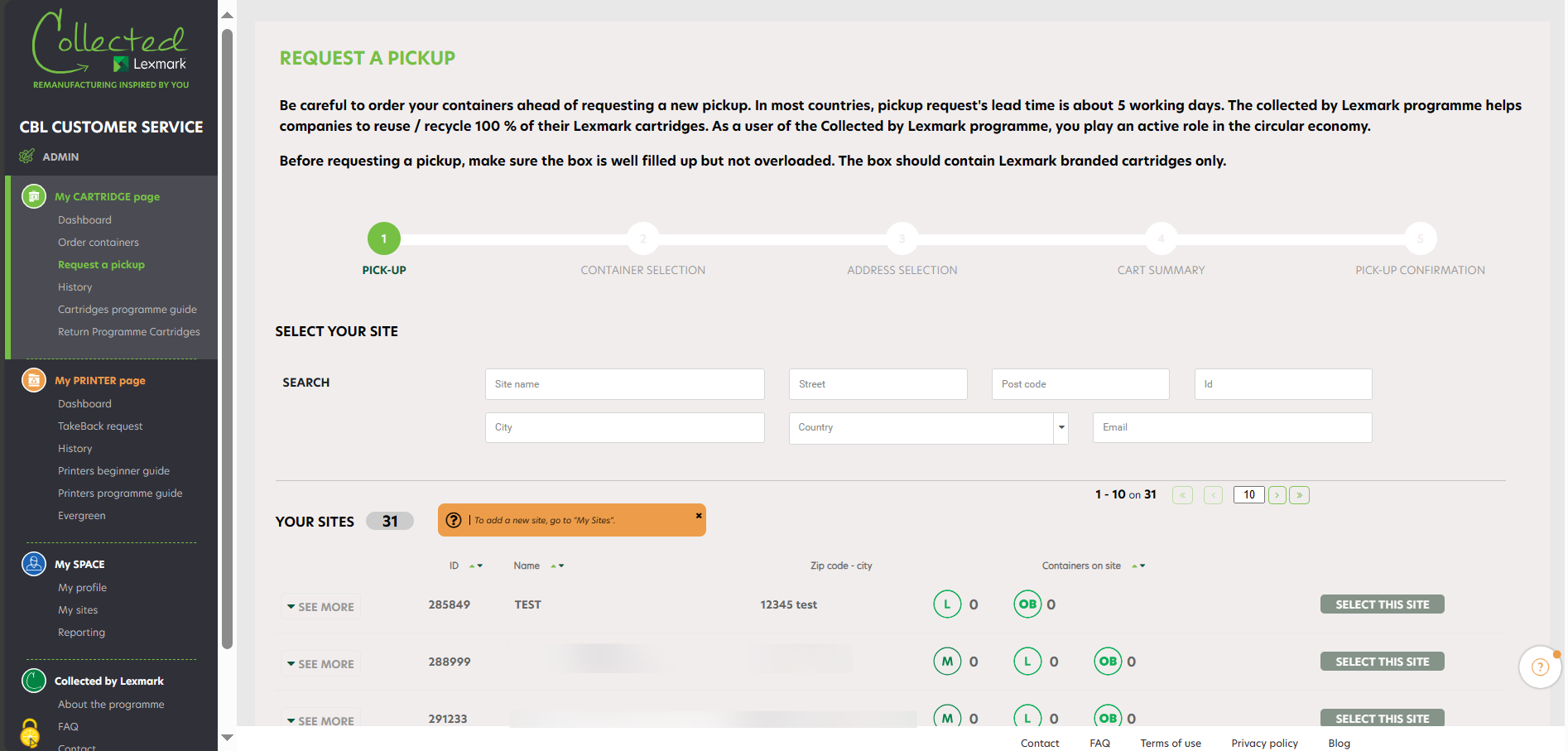
To request a container pickup for your company, click on « Request a pickup ». The list of your companies is displayed. Thanks to the search engine, you can easily find a company by typing its name and its zipcode.
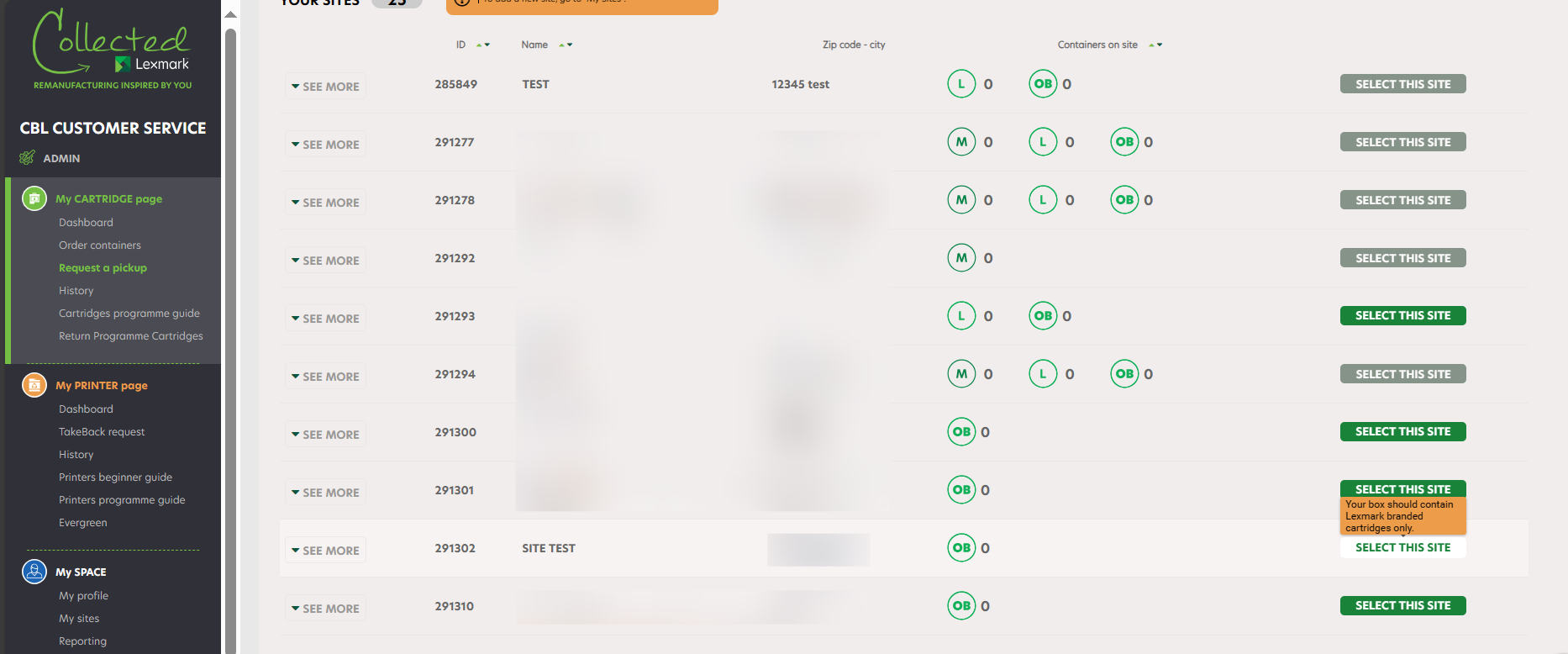
Select the chosen company by clicking on « Select this site ». You can check the information about your companies by clicking on the button « See more » on the left. You might see one icon :
|
A pickup order is already in progress for this company, you will not be able to request a new one until your collection has been done. |
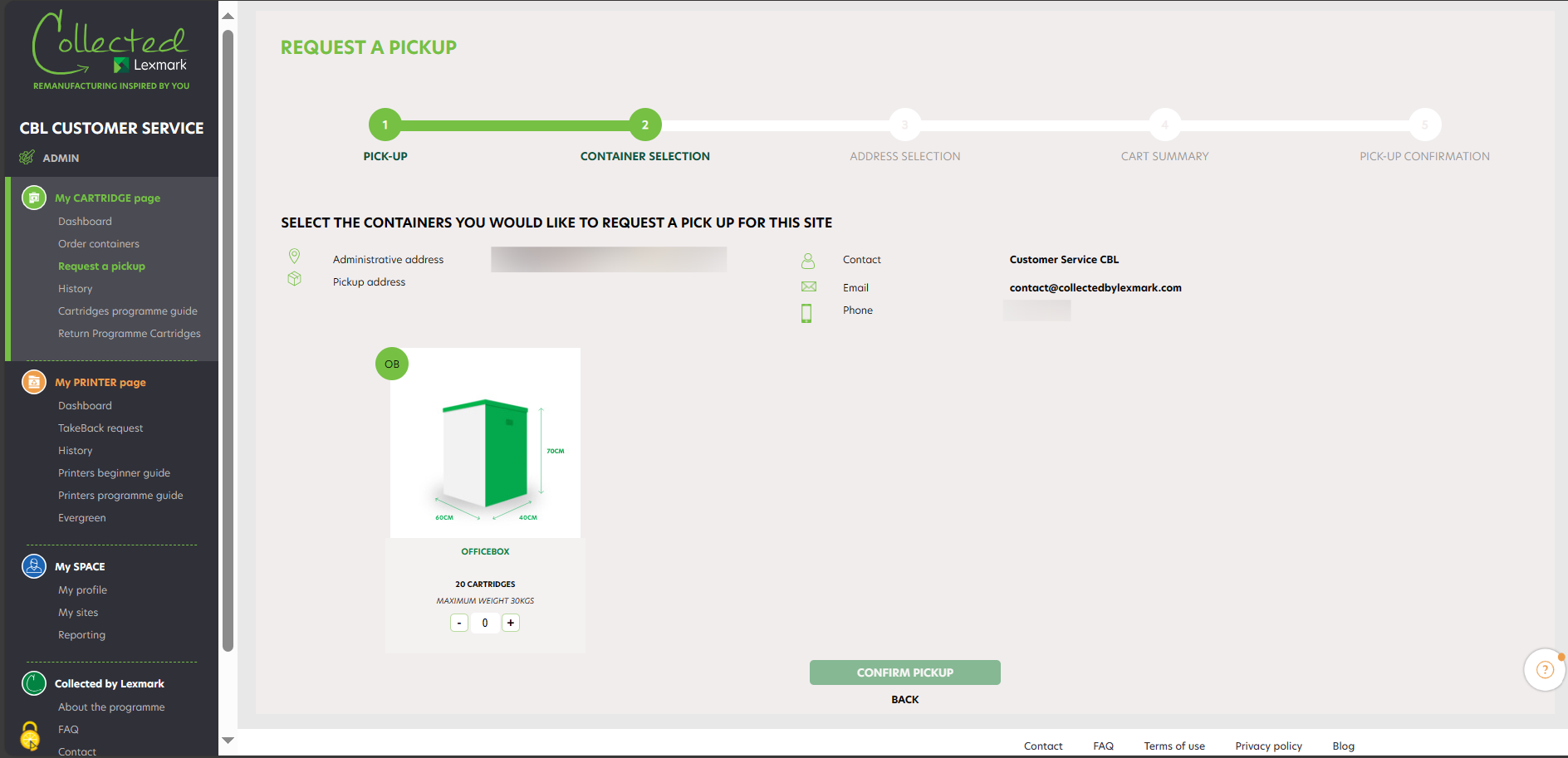
After clicking on « Select this site », you reach on the second step of the process where you can choose the size and quantity of containers that have to be collected (5 containers per size and per collection maximum). On the top you can see your company information. Click on « Confirm Pickup » to go to the next step. You can see at which step of the pickup process you are with the progression bar.
You can modify or delete the request at the last confirmation stage.
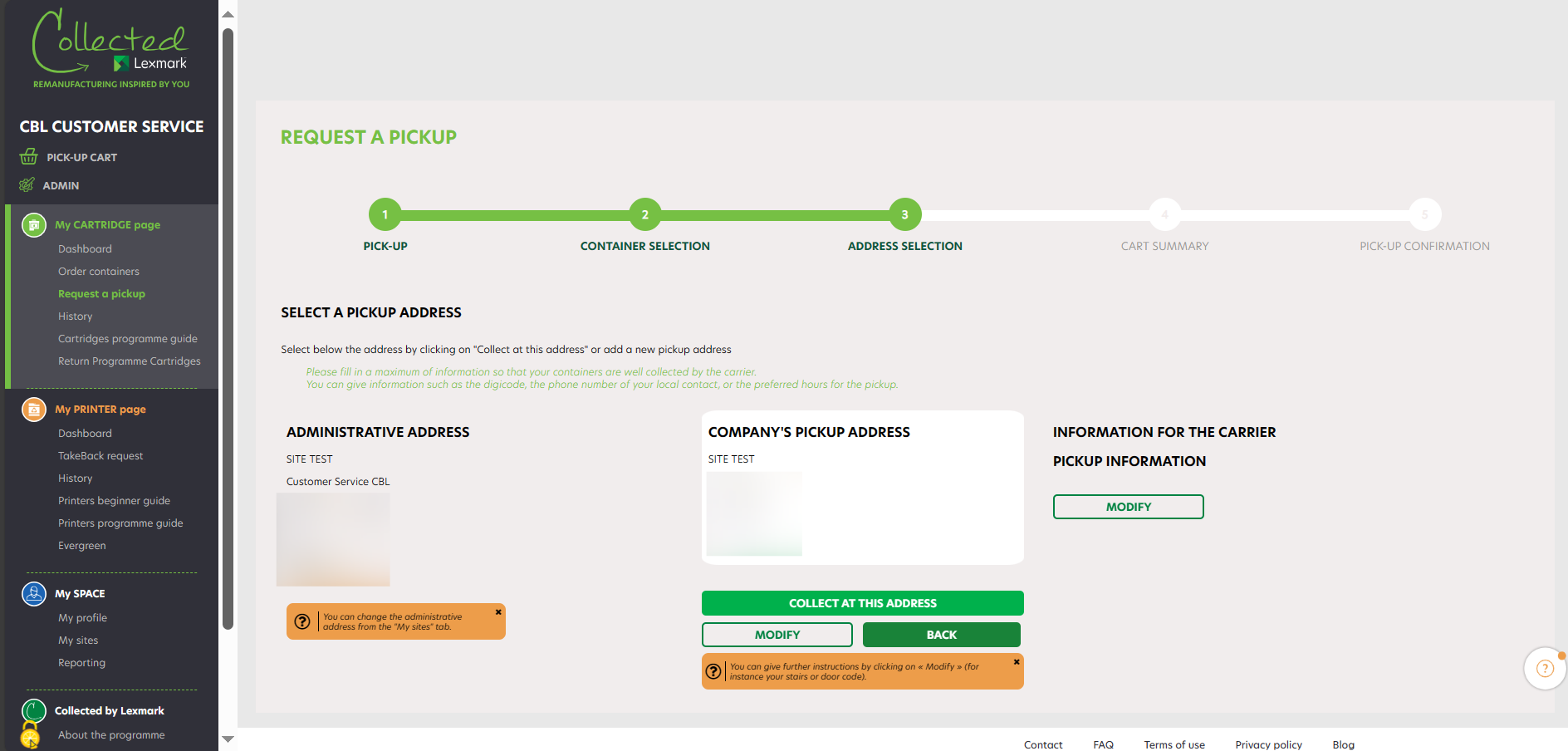
At step number 3, you access to your delivery details (company name, administrative address and company’s pickup address). You can modify the pickup address simply by clicking on « Modify », and go on with the process by clicking on « Collect at this address ».
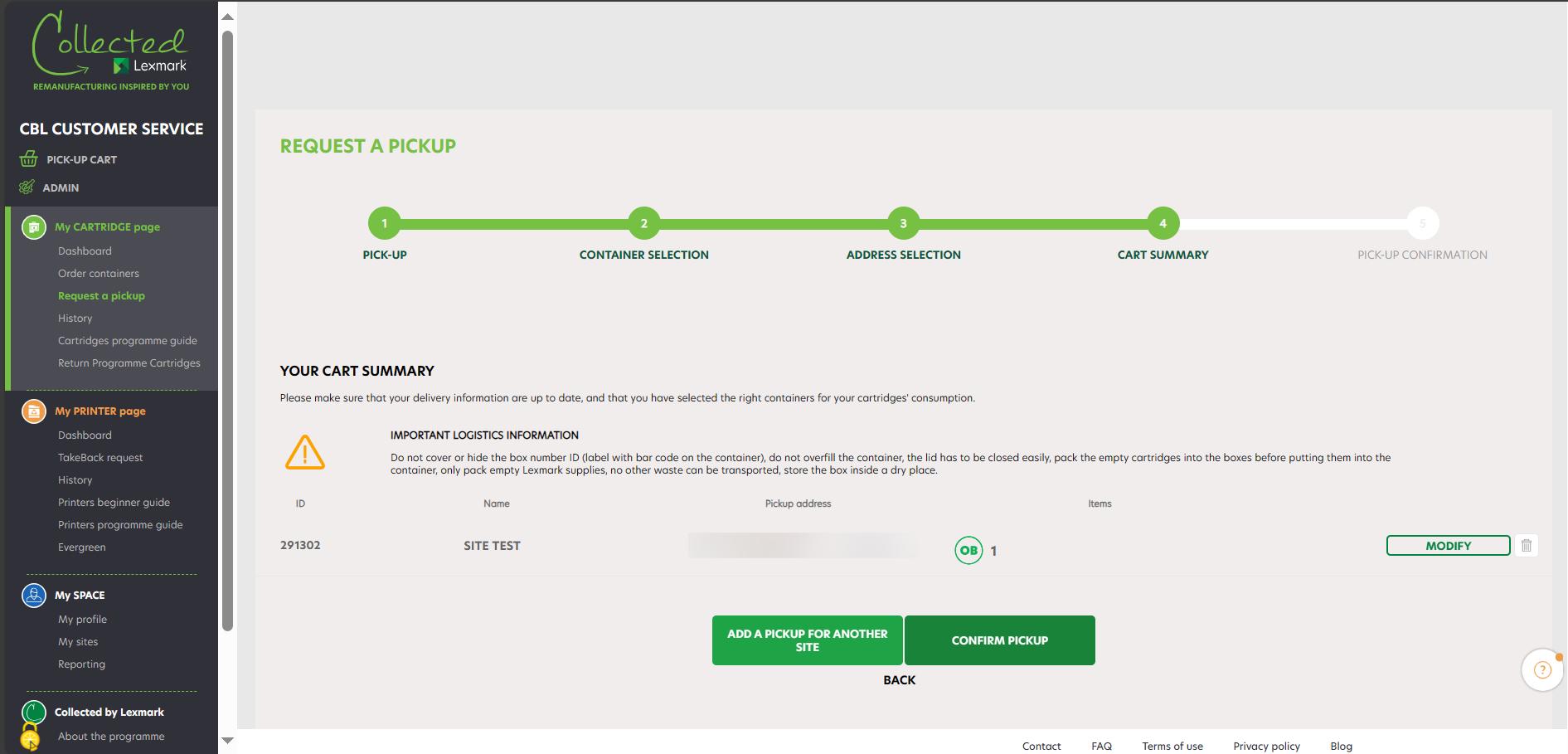
At step 4 you find your pickup request details (company name, number of containers to be picked up). You can modify your request or delete it by clicking on the bin. Once you’ve clicked on « Confirm pickup », your pickup request is sent. If you want to add another collection for another site, you can click on « ADD A PICKUP FOR ANOTHER SITE ».
Once your pickup request is processed, you receive an order confirmation email with the details of your pickup within 24h. You can modify or delete your request within the next 4 hours on the History page.
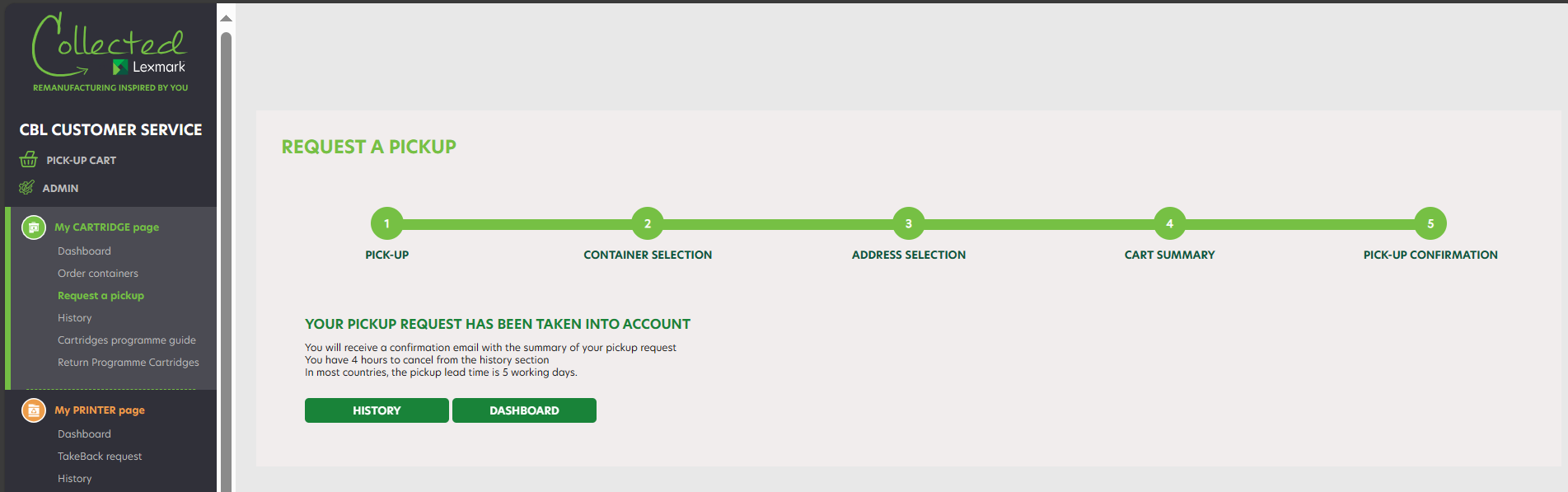
During each step of this process you can go back to the previous step by clicking on the « Back » button. Moreover, if you go back to the first step, your order is still present on your cart. Therefore, you can resume your pickup at any time.
Aș dori să știu unde este comanda mea.
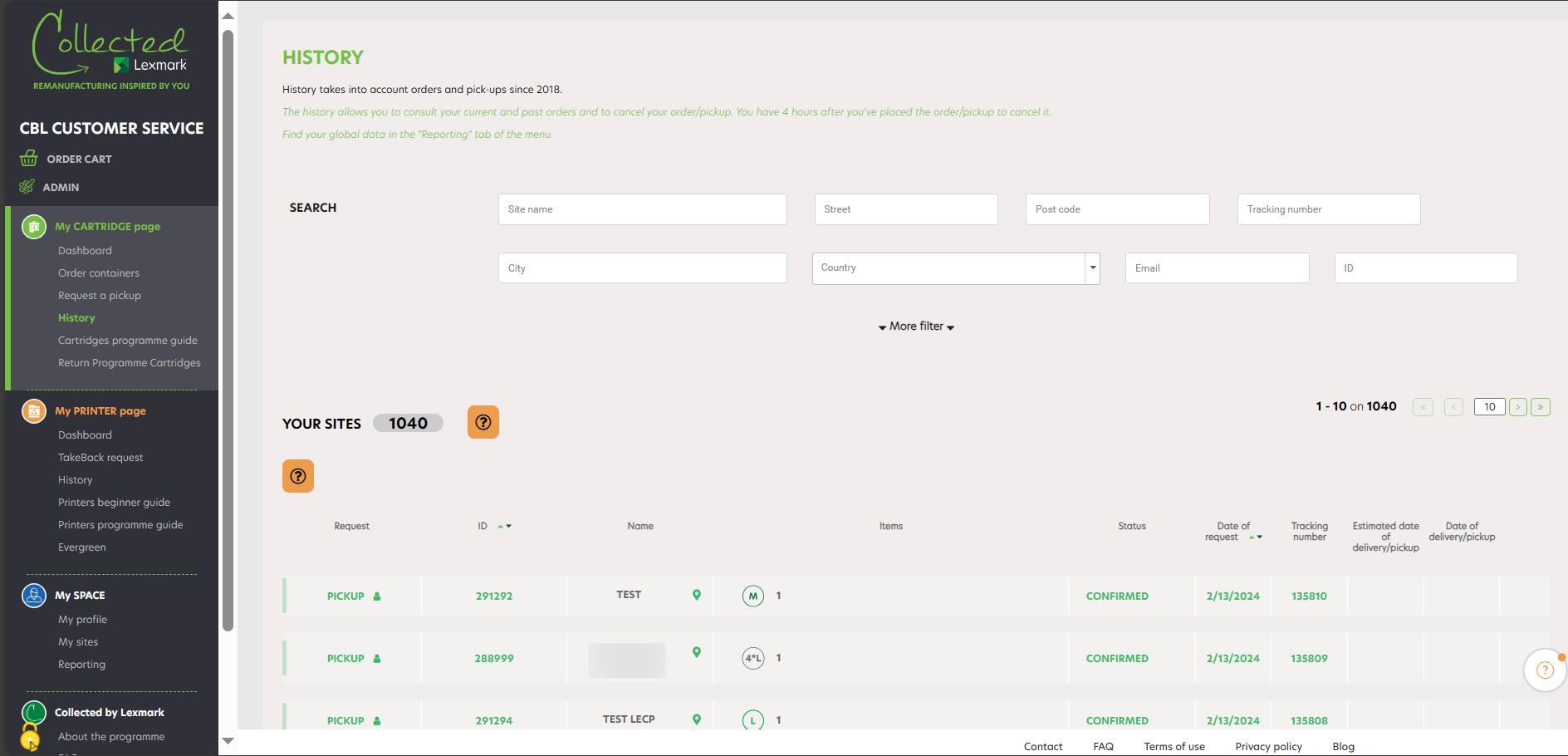
To track the progress of your order, click on « History ». Thanks to the search engine you can easily find a company by typing its name and its zipcode.
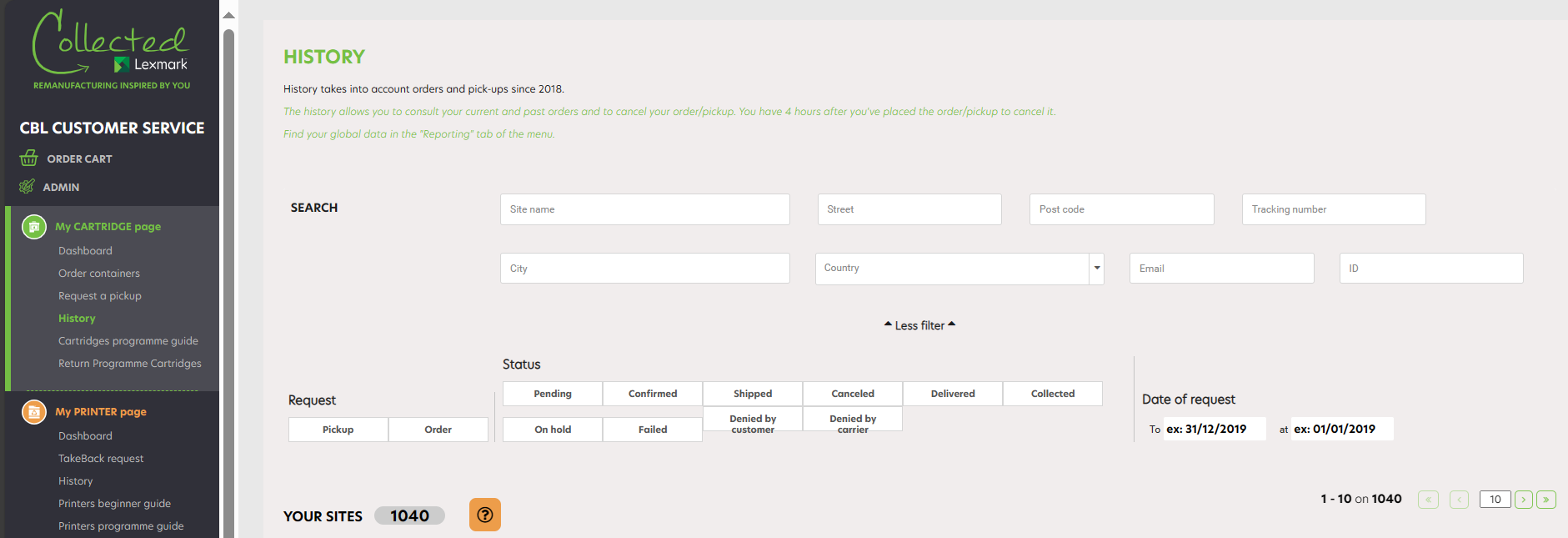
Advanced search allows you to easily find an order : select « Order » and your order status :
- « Pending » status :
the order has been registered by the Collected by Lexmark programme. - « Confirmed » status :
the order has been confirmed by the Collected by Lexmark programme and is under preparation; it will be delivered within 10 days. The tracking number of your order appears as soon as your order is confirmed. - « Shipped » status :
the order has been shipped. The delivery date is confirmed. - « Delivered » status :
the order has been received by your company. - « Canceled » status :
the order has been canceled. - „Denied for carrier reason” status :
The order has been canceled after several unsuccessful delivery attempts. knlux.lccp_reverselogistics@kuehne-nagel.com - Thanks to the search engine you can easily find a company by typing its name and its zipcode.
The order has been canceled due to the customer’s request. - „Failed” status :
the order has failed (for example, no one was on site to give the boxes, or there were internal issues that occurred on the carrier’s side, such as the box got damaged…). In this case, please contact our logistics team: knlux.lccp_reverselogistics@kuehne-nagel.com - « On hold » status :
the order has been unsuccessful, the customer receives an email and has 48 hours to contact the logistics team.
Aș vrea să știu unde este pickup-ul meu.
To track the progress of your pickup request, click on « History ». Thanks to the search engine you can easily find a company by typing its name and its zipcode.
The advanced search allows you to easily find a pickup request : select « Pickup », and your pickup status :
- « Pending » status :
the request has been registered by the Collected by Lexmark programme. - « Confirmed » status :
the pickup has been confirmed by the Collected by Lexmark programme and is under preparation; it will be processed within 5 days. The tracking number of your pickup appears as soon as your pickup is confirmed. - « Ready to collect » status :
the pickup date is confirmed. - « Collected » status :
the pickup was done within your company. - « Canceled » status :
the pickup has been canceled. - „Denied for carrier reason” status :
The order has been canceled after several unsuccessful delivery attempts. - Thanks to the search engine you can easily find a company by typing its name and its zipcode.
The order has been canceled due to the customer’s request. - « Failed » status :
the pickup has failed – ( for example, no one was on site to give the boxes, or there were internal issues that occurred on the carrier’s side, such as the box got damaged…). In this case, please contact our logistics team :(knlux.lccp_reverselogistics@kuehne-nagel.com). knlux.lccp_reverselogistics@kuehne-nagel.com - « On hold » status :
The pickup has been unsuccessful, the customer receives an email and has 14 days to contact the logistics team.
Încerc să adaug o companie la site-urile mele, dar nu reușesc să o fac.
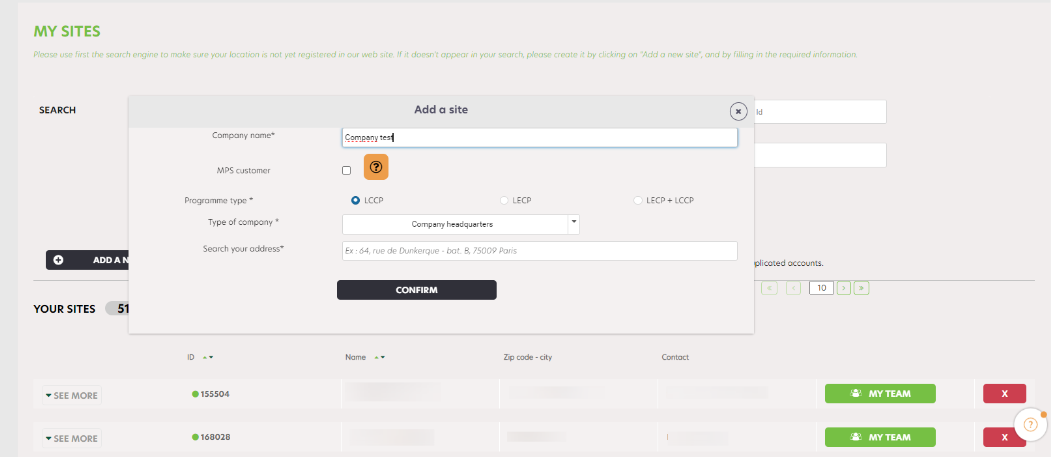
When you click on « My Sites », you have a display of all the companies associated with your account. You can delete a company by clicking on the red cross, or add a new company by clicking on « Add a new site ».
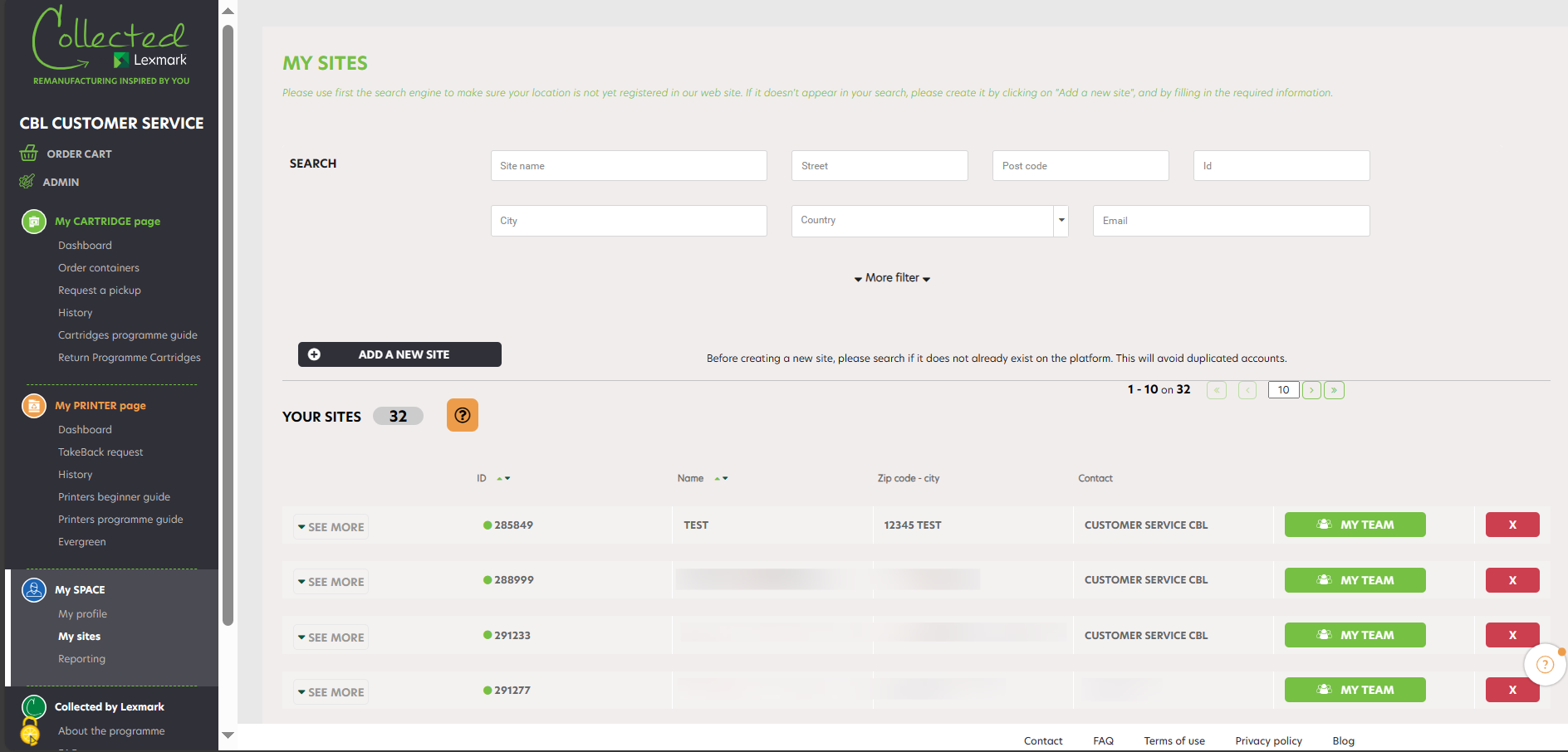
You only have to fill in the new company name, address. The Google API will automatically suggest addresses and if you select one, it will be automatically filled in.
ÎNTREBĂRI FRECVENTE DESPRE PROGRAMUL DE COLECTARE A IMPRIMANTELOR
Ce este programul LECP?
The Collected by Lexmark programme has two different programmes : LCCP, for the collection of Cartridges and LECP for collection of Printers.
LECP is a Lexmark Printers Collection Programme. It facilitates the collection management of the printers at their end of life and helps their remanufacturing before they are fully recycled. Printers are either remanufactured or dismantled for usable parts.
The Collected by Lexmark programme enhances all stakeholders corporate social responsability’s strategy and helps the participation of our customers in the circular economy.
Care sunt condițiile de înscriere în program?
- To be a private or public company and to have a national authentication number
- To be a company located in Europe
- To share with Lexmark a contact representing the company that will manage the programme
Mi-am uitat parola. Ce trebuie să fac?
If your company is already registered and if you have not yet activated your password, or if you have forgotten your password, click on « Forgot your password ? » on the homepage to be redirected to the password reset form.
After having entered your email address, you will receive by email the link to set a new password.
The link will be active for the next 24 hours. Think about checking your spams.
Cum pot contacta Lexmark?
If you can’t find the answer to your question in this FAQ, we invite you to contact us via the dedicated contact form.
Cum pot urmări evoluția cererii mele de preluare?
Check that the email is not in your spam. After 24H, should you not receive any email, please contact us via the contact form.
Care este diferența dintre o cerere de preluare și o cerere de răscumpărare?
In case the owner of the printers is Lexmark, it is Takeback.
In case the owner of the printers is not Lexmark, it is a Buyback.
The owner of the printers might decide to give the printers to Lexmark free of charge. In this case the transaction is a Takeback, not a Buyback.
RUBRICILE FAQ
«COLLECTED BY LEXMARK»
PROGRAMUL CONTAINER
ÎNSCRIERE ÎN PROGRAM
PENTRU CONECTARE
CONTUL MEU
COMANDAREA UNUI CONTAINER
SOLICITARE COLECTARE
PROGRAMUL ECOBOX
PROGRAM DE CONTENITOR „COLLECTED BY LEXMARK” PENTRU INDIVIDUI
pagina de „raportare”
Lexmark oferă LCCP pentru a sprijini economia circulară, punând la dispoziția clienților metode gratuite și simple de reciclare și reutilizare responsabilă a consumabilelor Lexmark goale. LCCP susține, de asemenea, termenii acordului asociat cu imprimanta și computerul și cu Program de returnare consumabile.
Colectată de Lexmark este platforma web care permite companiilor medii și mari să participe la LCCP (consum începând cu 10 cartușe pe an). Acesta este gratuit și ajută la gestionarea colectării cartușelor scoase din uz și oferă asistență pentru recondiționarea acestora înainte de reciclarea completă. Programul Collected by Lexmark consolidează strategia de responsabilitate socială corporativă a tuturor părților interesate și îi ajută pe clienții noștri să participe la economia circulară.
Platforma Collected by Lexmark poate fi utilizată de întreprinderile care doresc să facă parte dintr-o abordare de economie circulară prin reutilizarea/reciclarea cartușelor Lexmark uzate. Prin participarea la acest program, compania se angajează să:
- Să returneze cartușele eligibile (așa cum sunt definite în Condițiile Generale de Utilizare) la Lexmark în vederea recuperării acestora conform termenilor și condițiilor din Condițiile Generale de Utilizare.
- Să informeze persoanele din compania sa, care gestionează consumabilele uzate, despre participarea sa la acest program.
- Să se conformeze obligațiilor reglementare privind DEEE-urile (Deșeuri de Echipamente Electrice și Electronice) pentru orice cartuș care nu ar fi returnat la Lexmark.
Eligibilitate: Lexmark nu își poate asuma responsabilitatea pentru orice alt tip de deșeuri. Orice eliminare a cartușelor, altele decât consumabilele de marcă Lexmark (inclusiv cartușele de la terți sau consumabilele care nu sunt de la Lexmark), este pe cheltuiala clientului și poate duce la rezilierea imediată a contractului.
- Să fiți o companie, privată sau publică și să dispuneți de un cod unic de înregistrare.
- Să fiți o companie cu sediul în România.
- Să transmiteți datele de contact ale unei persoane care reprezintă compania și care va administra programul.
- Să utilizați cartușe Lexmark sau eligibile (așa cum sunt definite în Condițiile Generale de Utilizare).
- Să utilizați containerele de cartușe prevăzute în scopul colectării.
Collected by Lexmark acceptă o varietate de produse Lexmark, dincolo de simplele cartușe. Faceți clic aici pentru a descărca tipurile de produse.
Cutiile dvs. de colectare trebuie să conțină numai cartușe marca Lexmark.
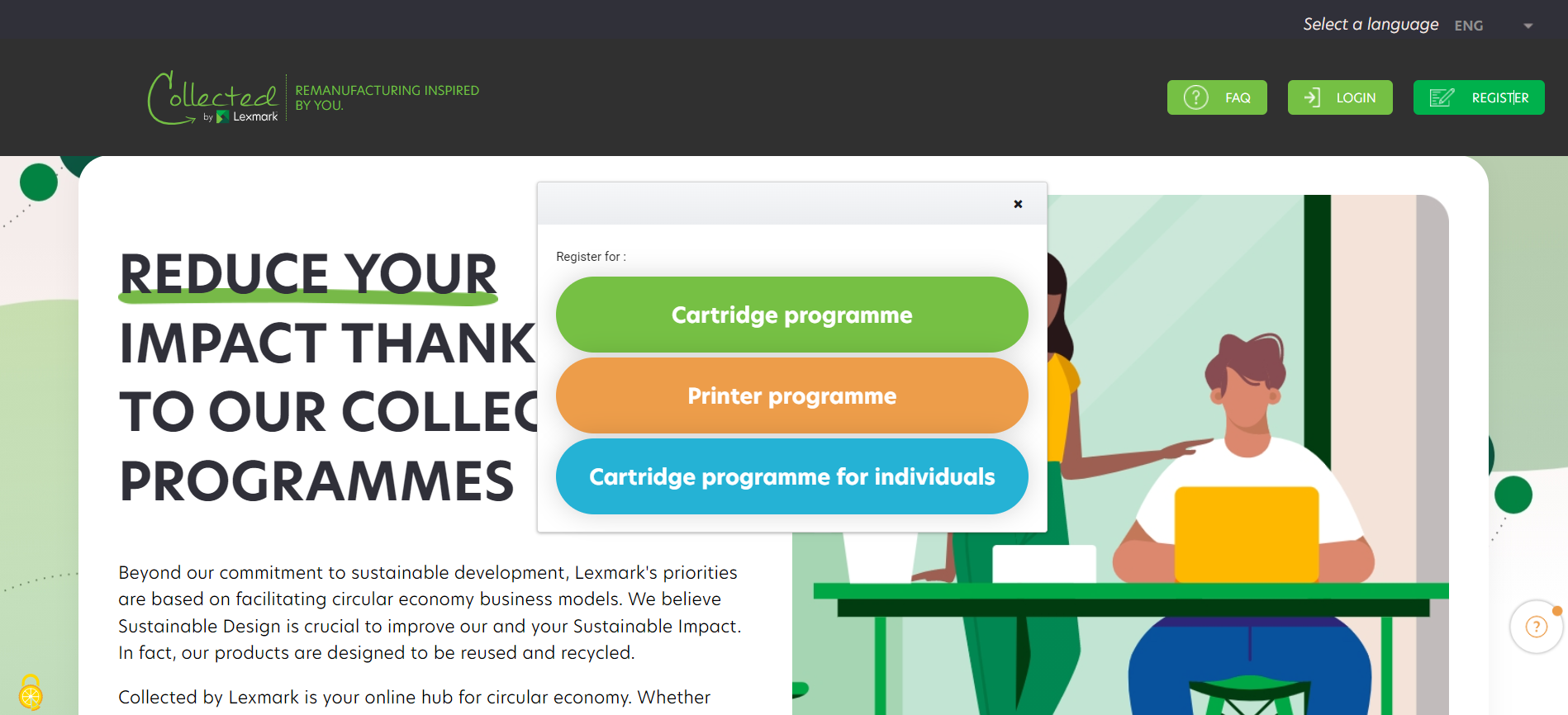
To register for the Collected by Lexmark programme, visit www.collectedbylexmark.com and click on « Create new account ». You will then be redirected to the registration form. Be sure to enter a professional email address so that your registration is validated.
Pentru a vă înscrie în programul Collected by Lexmark, mergeți pe www.collectedbylexmark.com și faceți clic pe „Înscrieți-vă”. Veți fi apoi direcționat spre formularul de înscriere. Aveți grijă să introduceți o adresă de e-mail profesională, pentru ca înscrierea dumneavoastră să fie validată.
Când înregistrați un cont, puteți adăuga doar o singură locație. Va trebui să completați formularul de mai jos cu datele dvs. personale și informațiile companiei. Când completați adresa companiei, Google API sugerează automat adrese din baza sa de date (procesul de completare automată).
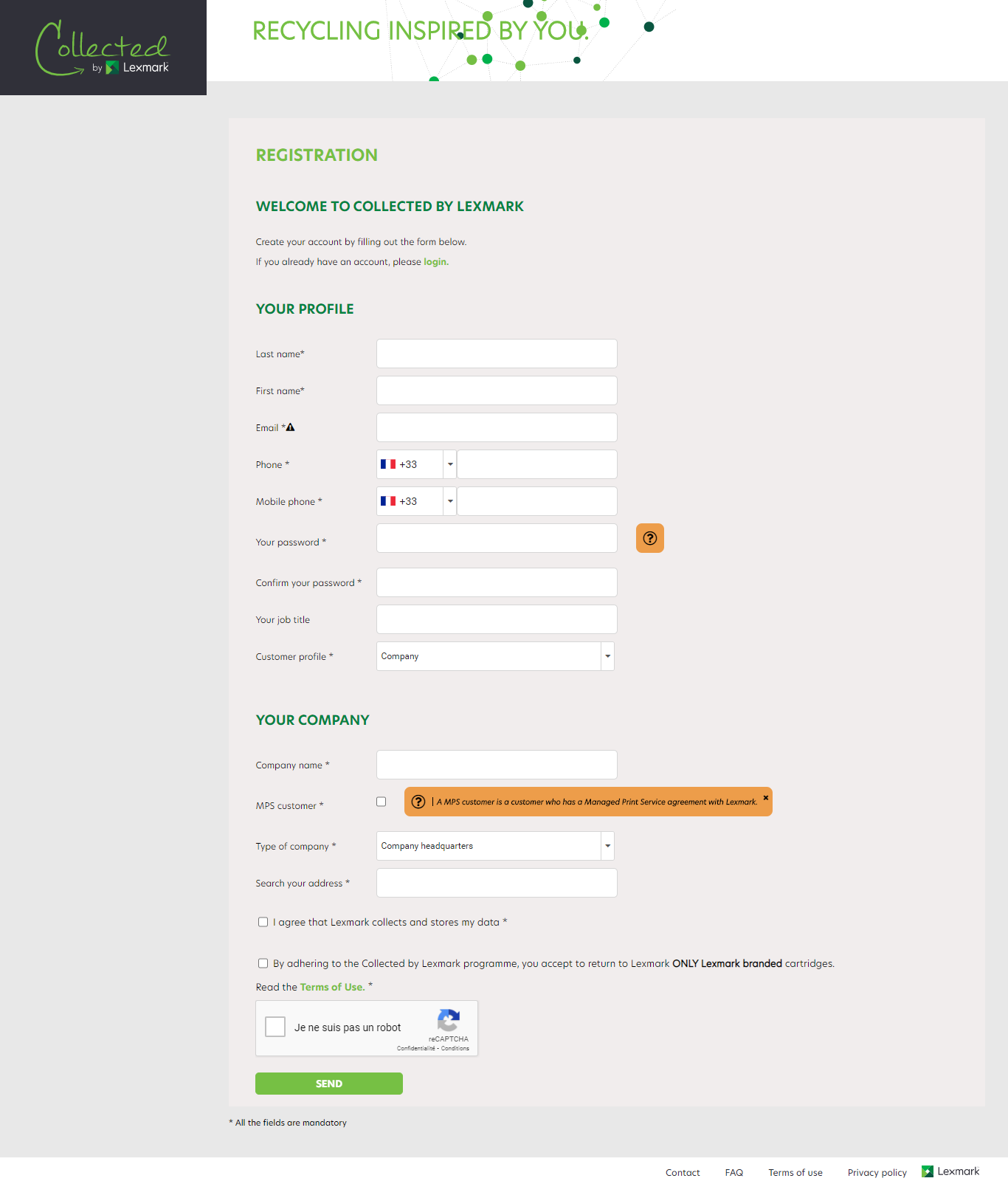
În cazul în care compania dumneavoastră este deja înscrisă în program, nu veți mai putea să o înregistrați încă o dată. Vă vom trimite datele de contact ale persoanei care este deja înregistrată din compania dumneavoastră.
Nota bene: pentru a adăuga o nouă locație la cele deja existente sau pentru a actualiza profilul companiei, nu utilizați butonul de conectare „CREARE CONT NOU”. Trebuie să vă conectați și să intrați în Unitățile mele.
Dacă aveți mai multe site-uri de înregistrat, vă rugăm să solicitați șablonul de încărcare în masă a fișierului Excel prin reprezentantul dvs. de vânzări Lexmark sau prin intermediul formularul de contact.
Verificați dacă :
- Sunteți eligibil pentru program.
- Adresa de e-mail introdusă este o adresă de e-mail profesională.
- De asemenea, aveți grijă să completați toate câmpurile obligatorii.
Dacă compania dumneavoastră este înscrisă deja în program, vă vom comunica datele de contact ale persoanei deja înregistrate pentru compania dumneavoastră. Dacă aceasta nu mai lucrează la dumneavoastră, vă rugăm să ne contactați prin intermediul formularului de contact, menționând adresa dumneavoastră de e-mail.
În cazul în care compania dumneavoastră este deja înregistrată și nu v-ați activat încă parola sau dacă v-ați uitat parola, faceți clic pe „Parolă uitată?” de pe pagina de start. Pentru a fi redirecționat spre formularul de resetare a parolei. După ce v-ați introdus adresa de email, veți primi prin email linkul pentru setarea unei noi parole. Linkul va fi activ timp de 24 de ore. Aveți grijă să vă verificați și spamurile.
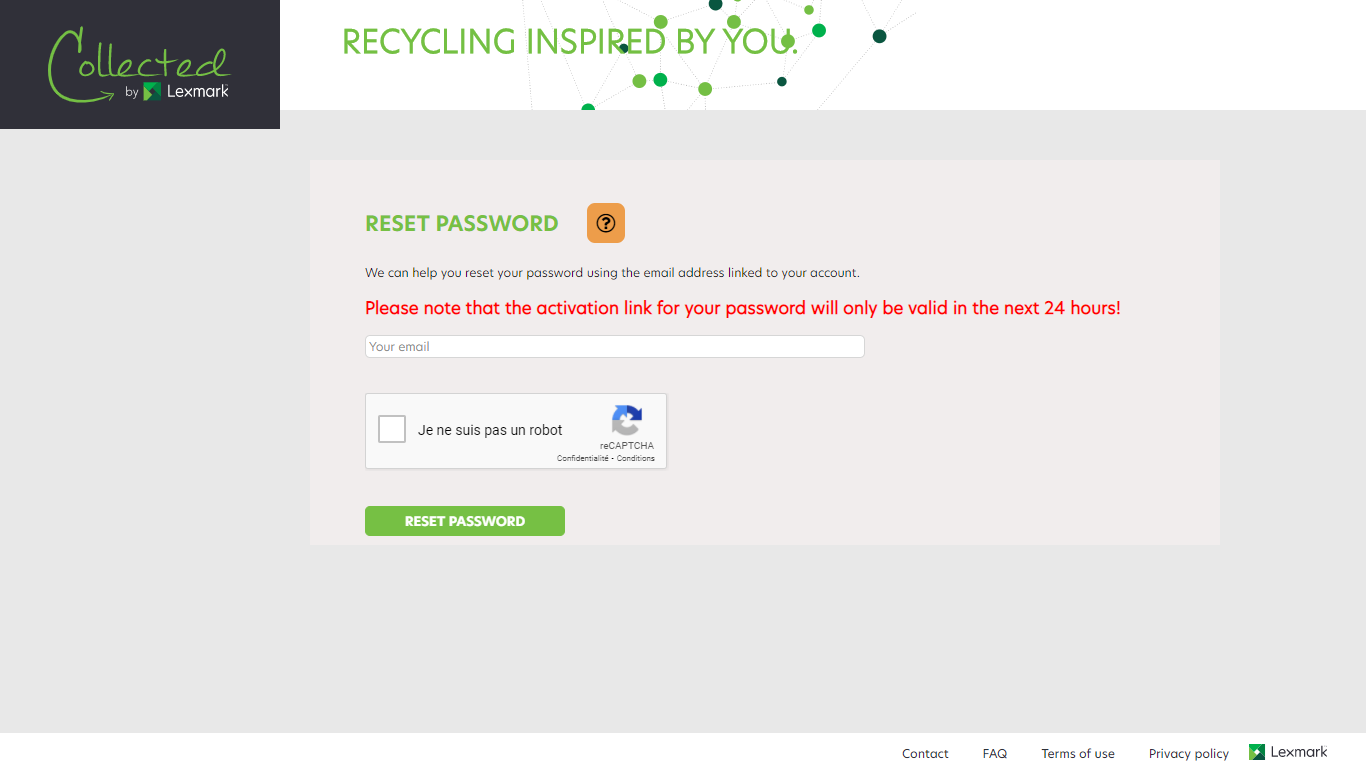
Pentru a vă modifica parola, mergeți în rubrica „Profilul meu” din contul dumneavoastră. Acolo veți putea să vă modificați parola.
Pentru a vă conecta la contul dumneavoastră Collected by Lexmark, verificați ca atât adresa de e-mail introdusă, cât și parola asociată să fie corecte.
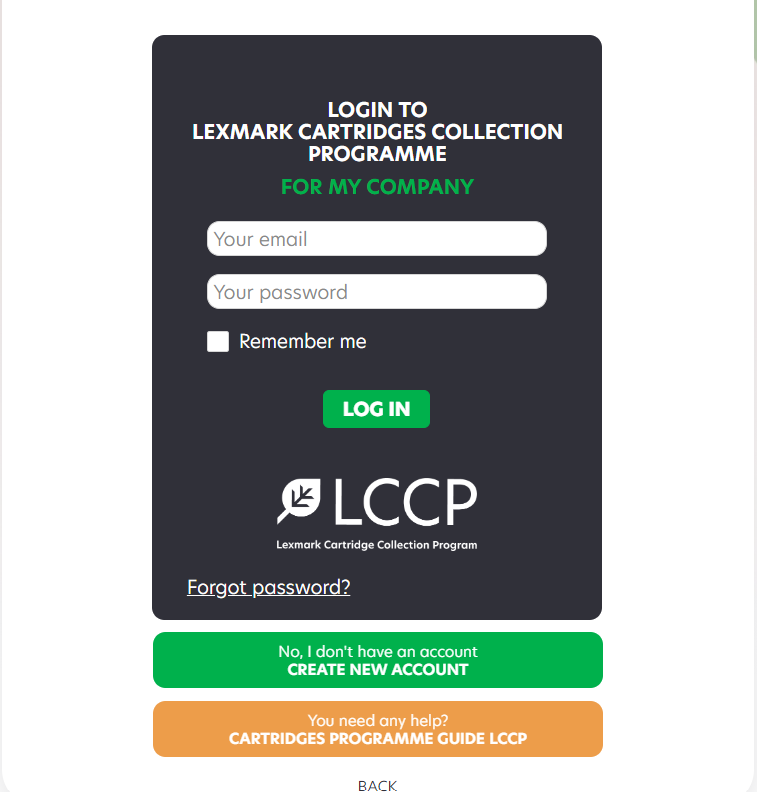
Pentru a vă conecta pe contul dumneavoastră Collected by Lexmark, introduceți adresa de email și parola pe care ați ales-o când v-ați înregistrat în program, apoi faceți clic pe „CONECTARE”.
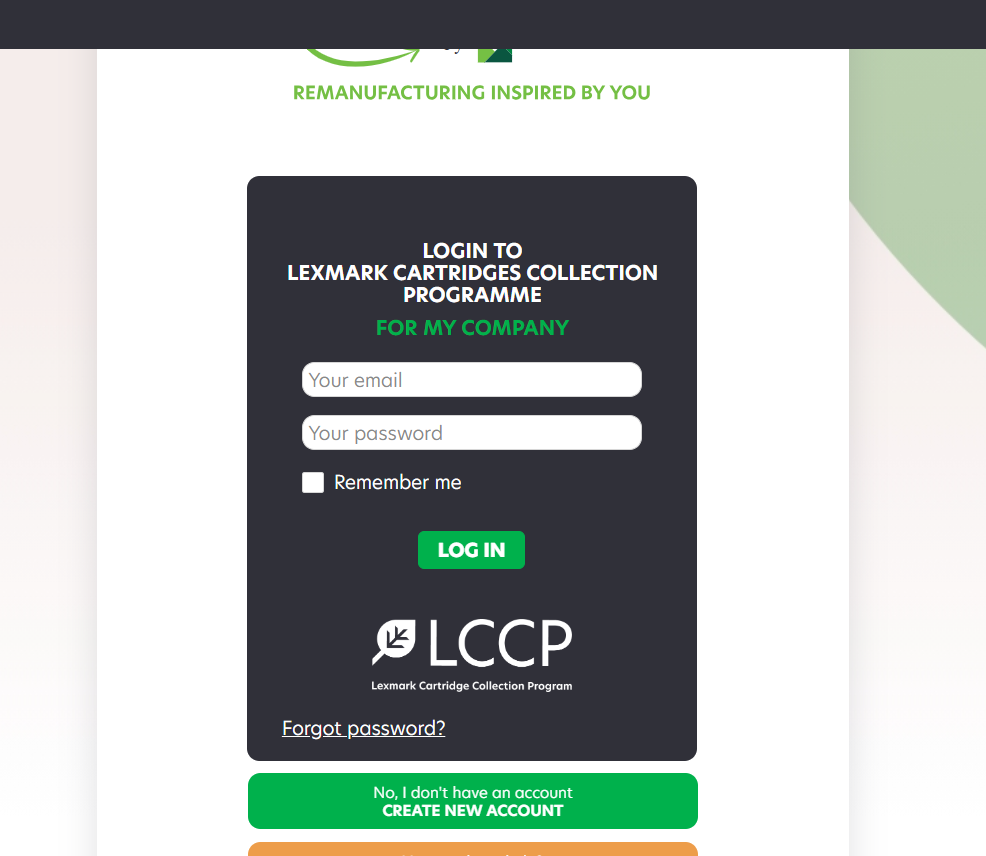
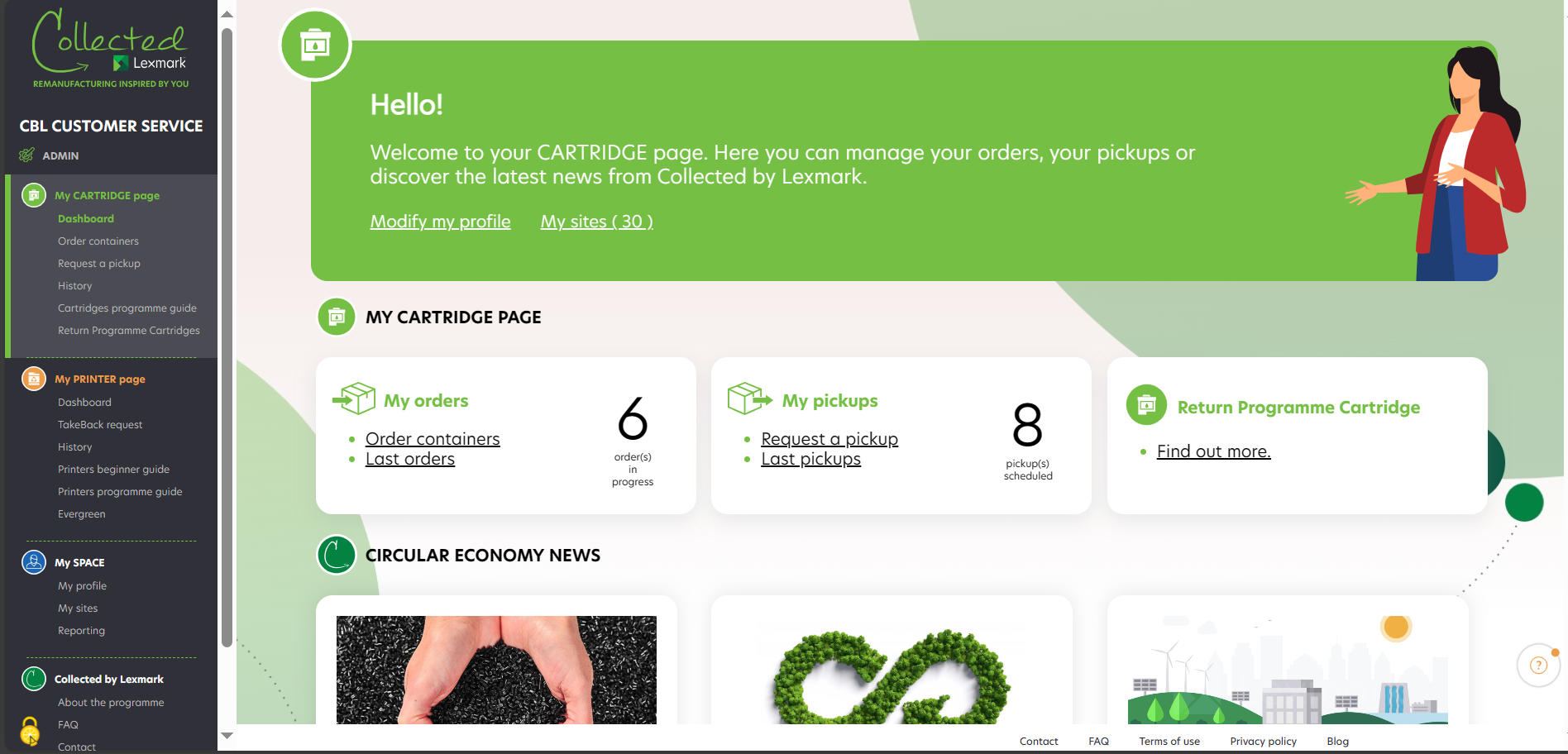
Când adăugați o nouă locație la cele deja existente sau actualizați profilul unei companii, nu utilizați butonul de conectare. Trebuie să vă conectați pe contul dumneavoastră și să intrați în Unitățile mele după ce v-ați conectat. Odată conectat, aveți acces la tabloul dumneavoastră de bord. Meniul, situat în stânga, vă ajută să navigați pe platformă.
Verificați ca e-mailul să nu fi ajuns în spamuri, apoi reluați procedura de resetare a parolei. Dacă tot nu primiți un e-mail din partea noastră, contactați-ne prin intermediul formularului de contact.
Verificați ca e-mailul să nu fi ajuns în spamuri. Dacă, după 24 h, tot nu primiți un e-mail din partea noastră, contactați-ne prin intermediul formularului de contact.
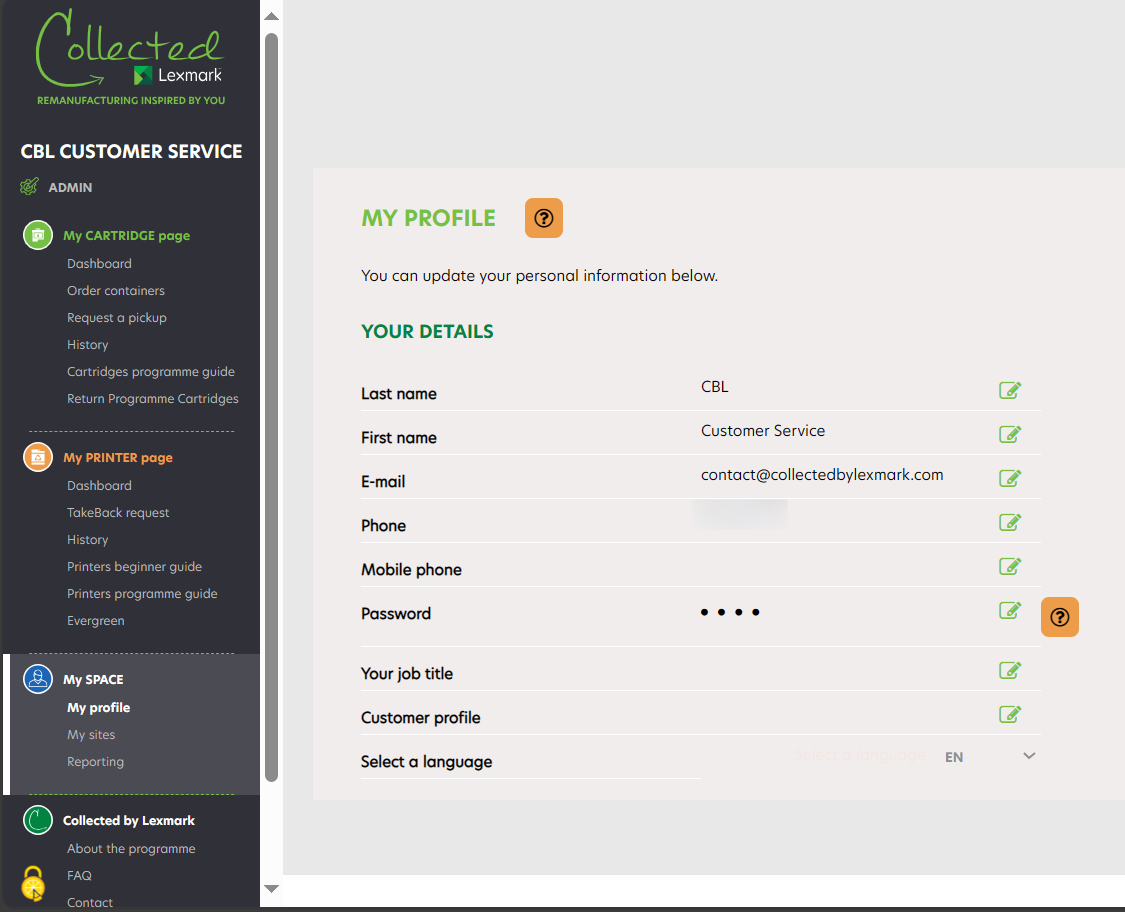
Pentru a vă modifica datele personale, mergeți în rubrica „Profilul meu” din contul dumneavoastră. Acolo veți putea să modificați datele următoare :
- Nume
- Prenume
- Număr de telefon (fix și mobil)
- Parolă
Pentru a face modificări, trebuie să faceți clic pe pictograma verde. Modificările vor fi salvate automat. Emailul fiind ID-ul unic de conectare, el poate fi modificat doar de un administrator, vă rugăm să ne contactați în cazul în care trebuie să-l modificați.
Compania dumneavoastră s-a mutat? Dacă doriți să actualizați noua adresă a companiei dumneavoastră, vă invităm să ne contactați prin intermediul formularului de contact.
Lexmark este conștientă de importanța respectării datelor cu caracter personal care sunt prelucrate și ne angajăm să protejăm datele pe care ni le încredințați. Pentru mai multe informații, consultați Politica noastră de confidențialitate.
Dacă nu găsiți răspuns la întrebarea dumneavoastră în această secțiune Î&R, vă invităm să ne contactați prin intermediul formularului de contact dedicat.
Pentru a comanda noi containere pentru compania dumneavoastră, faceți clic pe „Comandare containere”. Se afișează toate unitățile dumneavoastră. Motorul de căutare vă permite să găsiți rapid compania dumneavoastră: introduceți denumirea companiei dumneavoastră și codul său poștal.
Puteți să vizualizați numărul de cutii din fiecare tip pe care-l aveți în stoc (acesta depinde de alocarea pe țară). În cazul în care vizualizați două cifre, cum ar fi 1+1, înseamnă că aveți 1 cutie în stoc și 1 cutie în așteptare în coșul dumneavoastră.
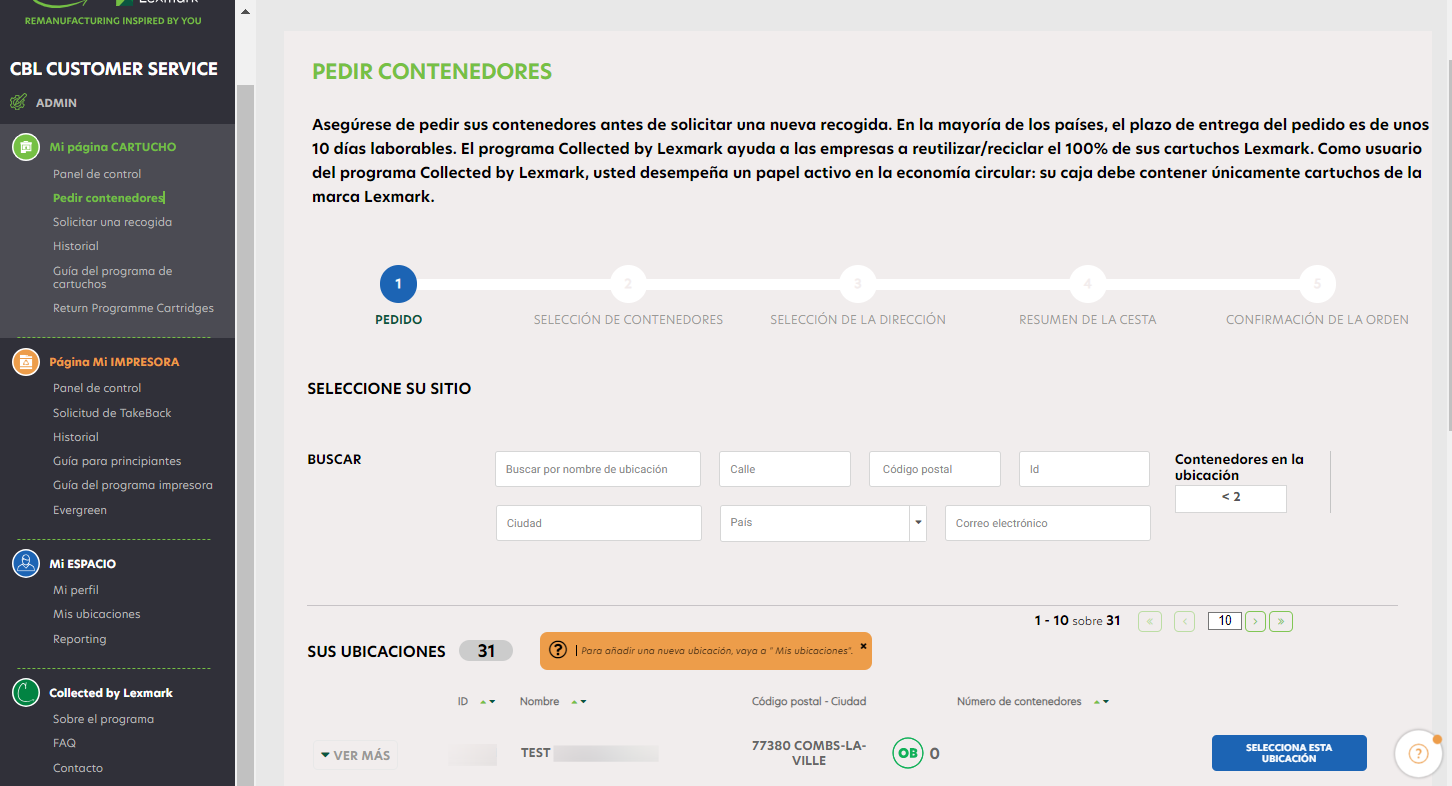
În dreptul companiei respective, faceți clic pe „Comandare”.
 |
o comandă este deja în curs pentru această companie. Nu veți putea solicita o nouă comandă decât după ce comanda în curs va fi livrată. |
După ce faceți clic pe „Selectați acest site”, ajungeți la al doilea pas al procesului, unde puteți alege dimensiunea și cantitatea de containere pe care trebuie să le livrați. Faceți clic pe „Adăugați la coșul de cumpărături” pentru a trece la pasul următor. Comanda dvs. este plasată în coșul de cumpărături. Puteți vedea la ce pas vă aflați în procesul de comandă datorită barei avansate de progres.
La etapa 3, găsiți detaliile dumneavoastră de livrare (numele companiei, adresa administrativă și adresa de livrare a companiei). Puteți să modificați adresa de livrare făcând pur și simplu clic pe „Modificare” și să continuați procesul făcând clic pe „Livrați la această adresă”.
Apare o fereastră: La etapa 4, găsiți detaliile comenzii dumneavoastră (numele companiei, numărul de containere de livrat). Puteți să modificați făcând clic pe „MODIFICARE” sau să ștergeți cererea făcând clic pe coșul de gunoi. După ce ați făcut clic pe „Confirmare comandă”, cererea dumneavoastră de comandă este trimisă. Dacă doriți să adăugați o altă comandă, pentru o altă unitate, puteți să faceți clic pe „ADĂUGARE COMANDĂ PENTRU O ALTĂ UNITATE”.
După ce comanda este procesată, primiți un email de confirmare a comenzii cu detaliile comenzii dumneavoastră în termen de 24 h. Puteți să vă modificați sau ștergeți comanda în următoarele 4 ore pe pagina Istoric.
În orice etapă a acestui proces puteți să mergeți la etapa precedentă făcând clic pe butonul „Înapoi”. Mai mult, dacă mergeți înapoi la prima etapă, comanda dumneavoastră rămâne înregistrată în continuare în coșul dumneavoastră. Prin urmare, puteți să o reluați în orice moment.
Puteți să comandați până la 5 containere din fiecare mărime pentru compania dumneavoastră, adică 20 containere maximum per comandă.
În cadrul demersului de economie circulară și de respectare a mediului, vă invităm să comandați mărimea și cantitatea de containere adecvate nevoilor dumneavoastră și să returnați containerele pline.
Programul Collected by Lexmark permite comandarea a trei tipuri de containere diferite, fiecare adecvat consumului anual de cartușe din compania dumneavoastră. formularului de contact.
UPDATE: Cutiile M&L nu vor mai fi active pentru comenzi în anumite țări. Vă rugăm să consultați postarea de pe blog pentru mai multe informații. Odată ce cutiile M&L se vor epuiza, acestea vor fi înlocuite cu cutii de format standard: OB și batch4OB, pe care le puteți comanda și colecta în mod liber
- Recipient mediu : 40X40X83 cm. Poate conține în medie 10 cartușe. Greutatea sa maximă este de 30 kg.
- Recipient mare : 60X40X83 cm. Poate conține în medie 15 cartușe. Greutatea sa maximă este de 30 kg.
- Lot de 4 cutii mari : de 4 ori 60X40X83 cm. Noi încurajăm utilizatorii cu consum mare să comande de 4 ori cutia 4L, în scopul de a reduce amprenta ecologică. Când cele 4 sunt pline, puteți să solicitați colectarea lor deodată. Fiecare cutie poate conține în medie 15 cartușe. Greutatea maximă a acesteia este de 30 kg.
- Office Box: 60X40X70 cm. Poate conține în medie până la 20 de cartușe. Greutatea sa maximă este de 30 kg.
- Lot de 4 Office Box: 120X80X40 cm. Încurajăm utilizatorii cu o utilizare ridicată să comande câte 4 deodată, pentru a economisi din amprenta ecologică. Atunci când cele 4 sunt pline, puteți solicita ridicarea lor toate împreună. Poate conține în medie până la 80 (4×20) de cartușe. Greutatea maximă combinată a acestora este de 120 kg.
În condiții specifice:
- Recipient mic – în condiții specifice: 40X40X45 cm. Poate conține în medie 5 cartușe. Greutatea sa maximă este de 15 kg.
- Container XL – în condiții specifice : 120X80X75 cm. Poate conține în medie 40 de cartușe. Greutatea maximă a acestuia este de 100 kg. Se livrează cu un palet de lemn.
Dacă doriți să beneficiați de acest tip de contract (S/XL), trebuie să contactați reprezentantul Lexmark pentru aprobare.
După 24 h trebuie să fi primit un email. Dacă acest lucru nu s-a întâmplat, vă rugăm să ne contactați prin intermediul formularului de contact.
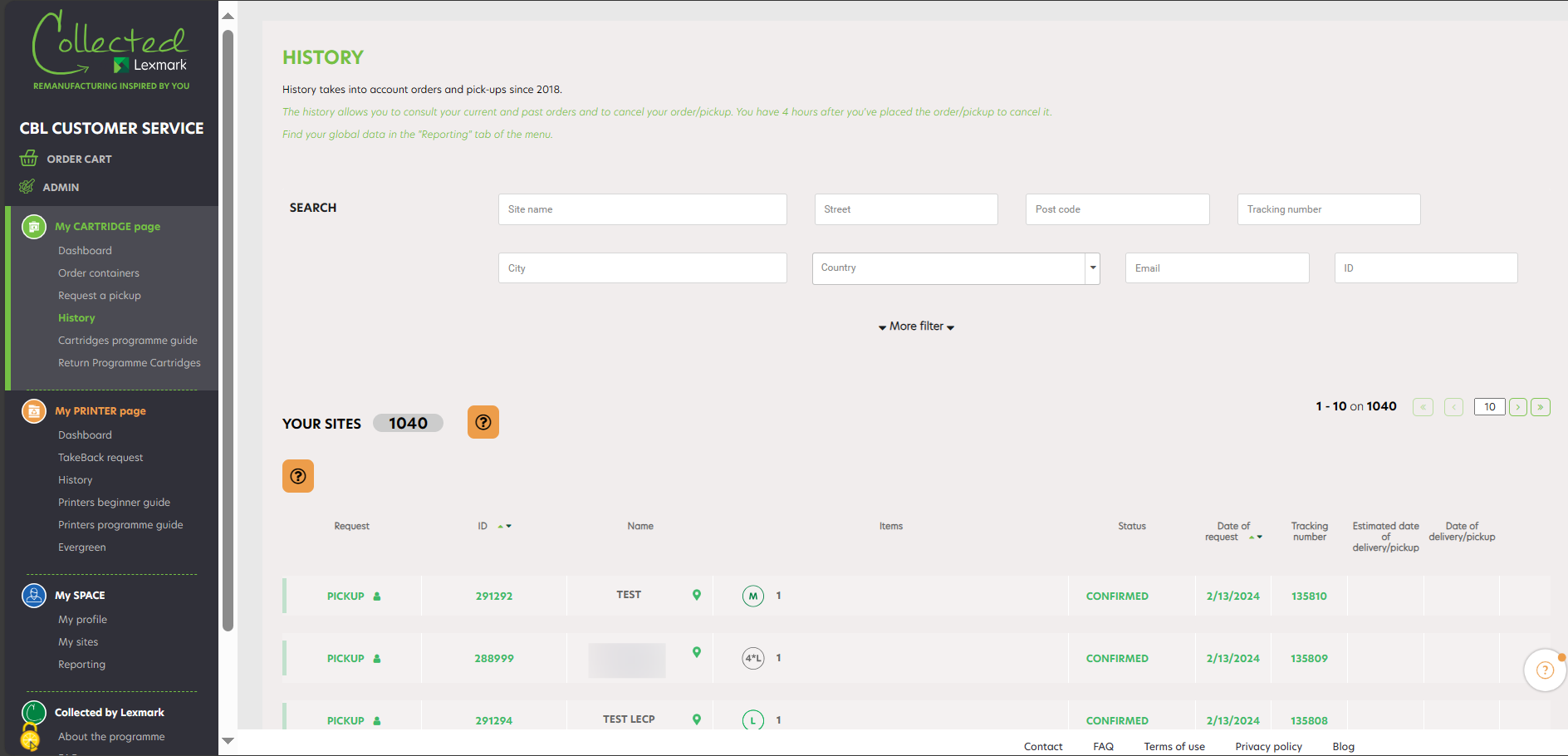
Pentru a urmări stadiul de avansare a comenzii dumneavoastră de containere, faceți clic pe „Istoric”. Motorul de căutare vă permite să găsiți rapid comanda dumneavoastră: introduceți denumirea companiei dumneavoastră și codul său poștal.
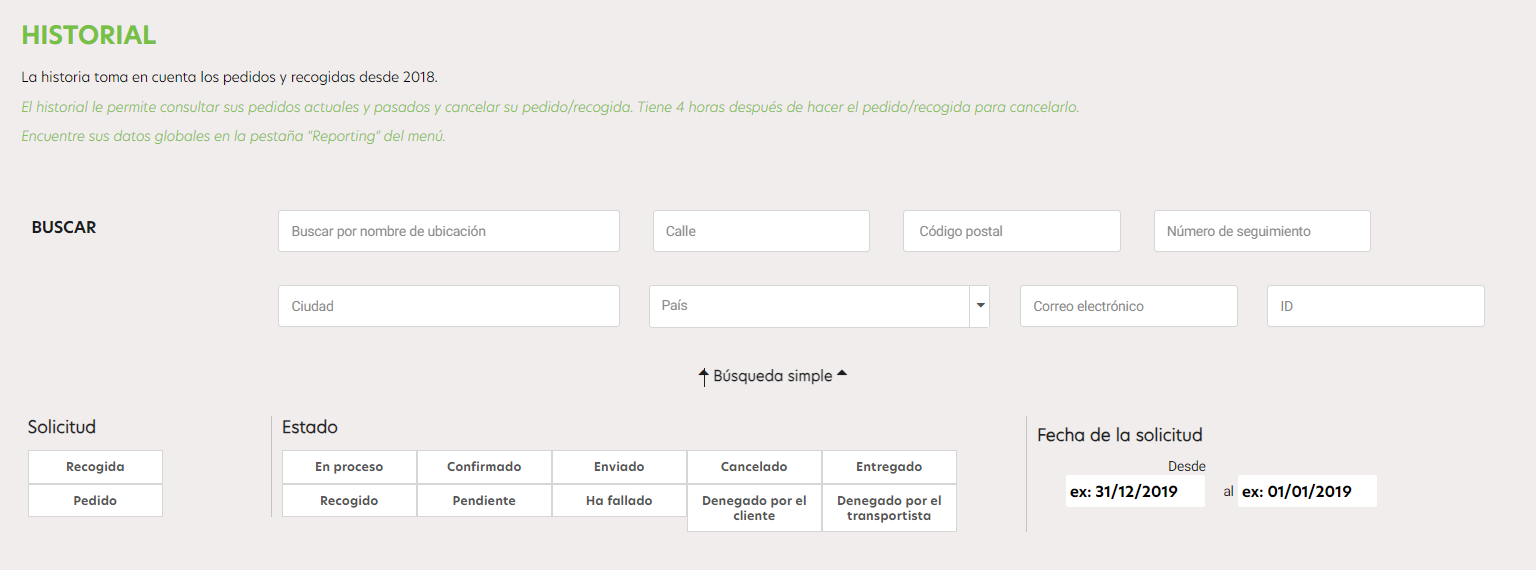
Căutarea avansată vă permite să găsiți rapid o comandă: selectați „Comandă”
- Stadiu „în curs”:
Comanda a fost efectuată și înregistrată de programul Collected by Lexmark. - Stadiu „confirmată”:
Comanda a fost confirmată de programul Collected by Lexmark și este în pregătire; ea vi se va livra în maximum 10 zile. Numărul de urmărire a comenzii dumneavoastră apare imediat ce comanda este confirmată. - Stadiu „expediată”:
Comanda a fost expediată. Data de livrare este confirmată. - Stadiu „livrată”:
Comanda a fost recepționată cu succes de compania dumneavoastră. - Stadiu „anulată” :
Comanda a fost anulată. - Statutul „Refuzat pentru motivul transportatorului” :
Comanda a fost anulată după mai multe încercări nereușite de livrare. knlux.lccp_reverselogistics@kuehne-nagel.com - Motorul de căutare vă permite să găsiți rapid comanda dumneavoastră: introduceți denumirea companiei dumneavoastră și codul său poștal.
Comanda a fost anulată ca urmare a solicitării clientului. - Starea „Nu a reușit” :
Comanda/ridicarea a eșuat – de ex., nu a fost nimeni la unitate pentru a preda cutiile. Vă rugăm să contactați echipa noastră logistică : knlux.lccp_reverselogistics@kuehne-nagel.com - Starea „În așteptare” :
Comanda nu s-a încheiat cu succes, clientul primește un email și are la dispoziție 48 de ore pentru a contacta echipa logistică.
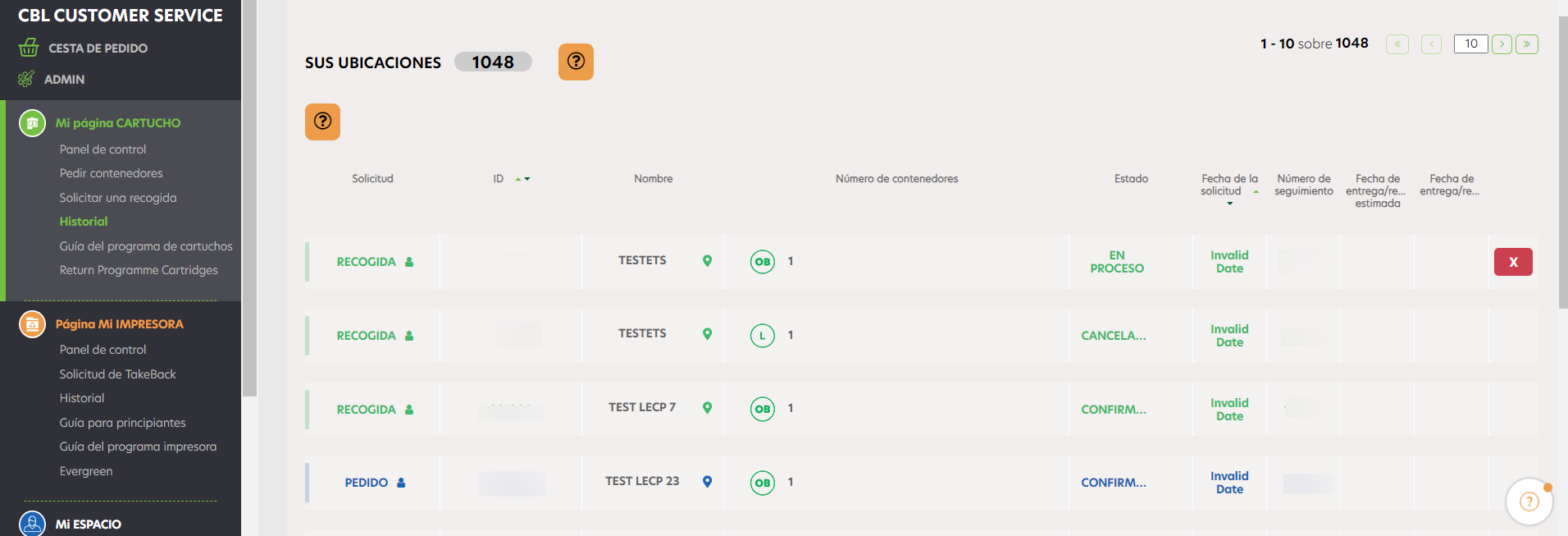
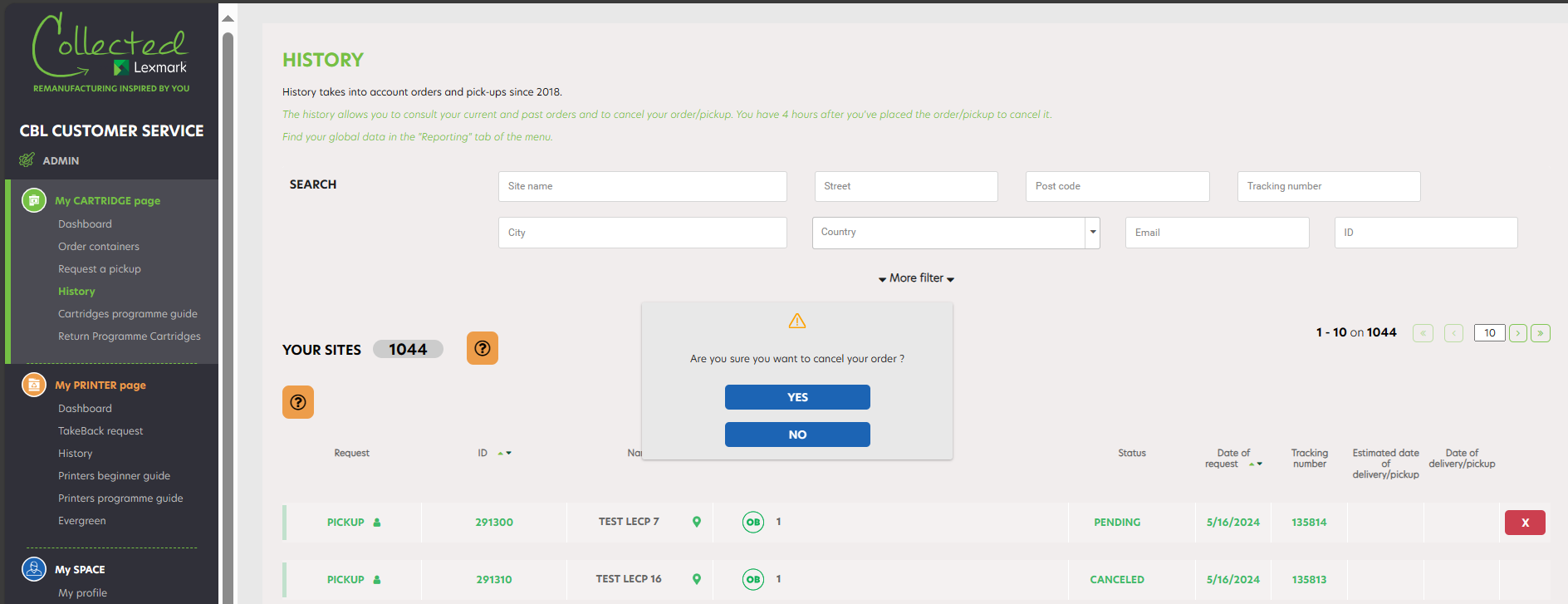
Puteți să anulați o colectare de containere dacă colectarea dumneavoastră are stadiul „în curs”. Faceți clic pe „Istoric” ultimele dumneavoastră solicitări sunt afișate primele. Pentru aceasta, faceți clic pe cruciulița roșie. Apare o fereastră de confirmare: faceți clic pe „Da”.
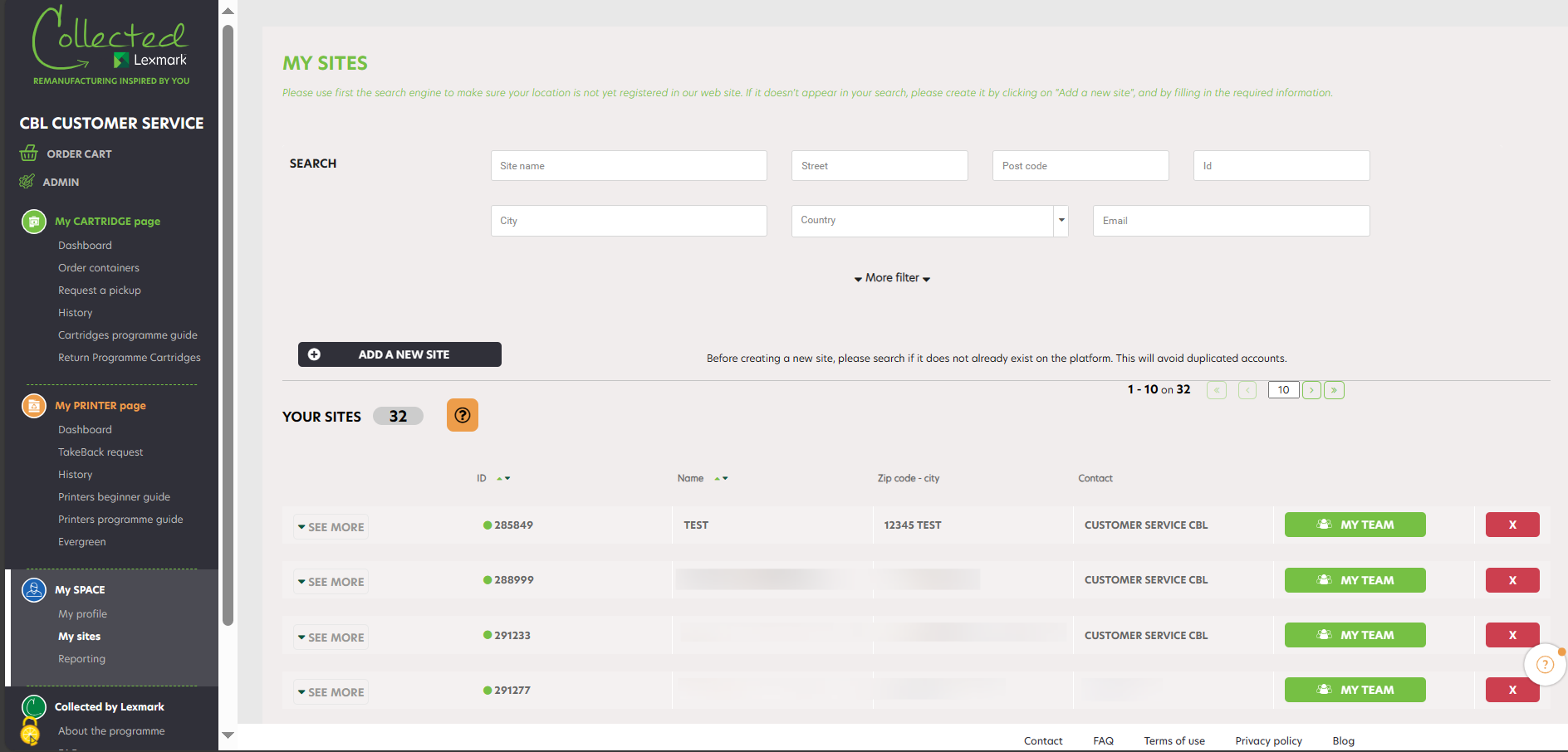
Pentru a modifica/adăuga datele colectării dumneavoastră, faceți clic pe „Unitățile mele”. Se afișează toate unitățile dumneavoastră. Motorul de căutare vă permite să găsiți rapid compania dumneavoastră: introduceți denumirea companiei dumneavoastră și codul său.
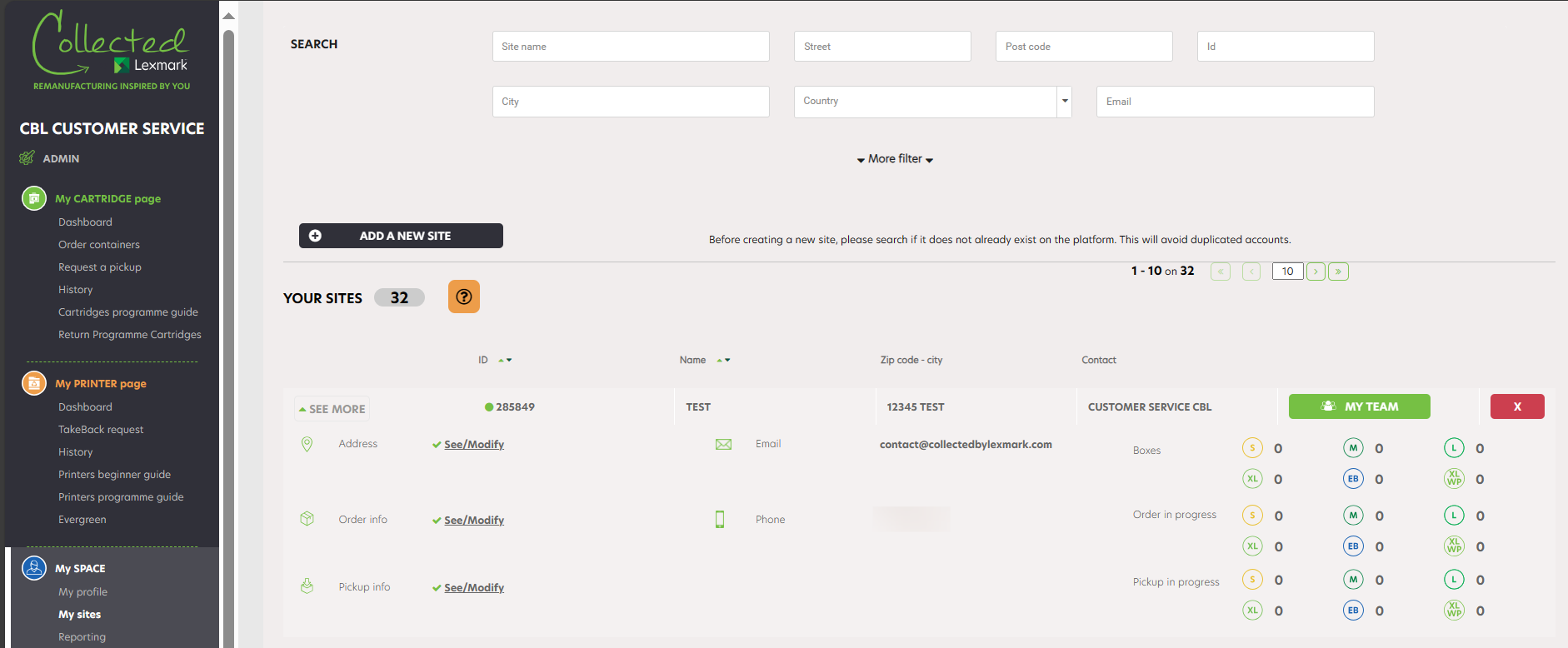
Deschideți meniul derulant al companiei respective: veți vedea toate informațiile legate de această locaţie. Faceți clic pe „Informații privind colectarea”: „Vizualizare/modificare”.
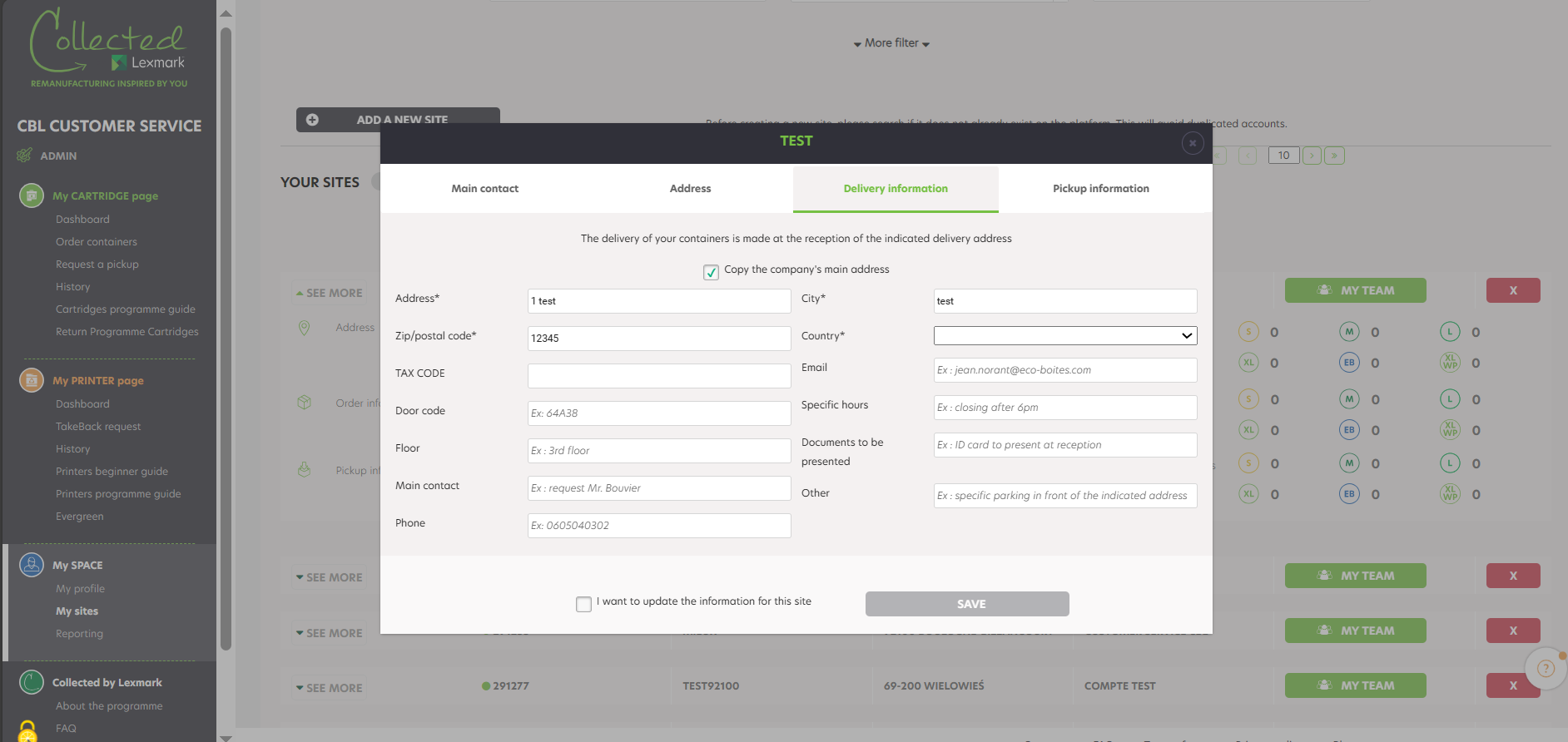
Se deschide o fereastră: faceți clic pe tab-ul „Informații privind colectarea”. Acum puteți adăuga/modifica datele colectării dumneavoastră: adresa de colectare, codul ușii de intrare, etajul, numele persoanei de contact care va fi prezentă în momentul colectării containerelor dumneavoastră, programul de lucru, informații specifice…
Bifați căsuța „Vreau să actualizez informațiile pentru această unitate” înainte de a face clic pe „Salvare”. Informațiile privind livrarea sunt actualizate automat.
Dacă nu reușiți să comandați containere, vă invităm:
- Să verificați dacă o comandă nu este deja în curs pe unitatea dumneavoastră. În acest caz, după recepția containerelor în compania dumneavoastră, veți putea să efectuați o nouă comandă, dacă este necesar.
Dacă, cu toate acestea, tot nu reușiți să efectuați o comandă de containere, vă rugăm să ne contactați prin intermediul formularului de contact.
Faceți clic pe „Solicitare colectare”. Se afișează toate unitățile dumneavoastră. Motorul de căutare vă permite să găsiți rapid compania dumneavoastră: introduceți denumirea companiei dumneavoastră și codul său poștal.
Selectați compania aleasă făcând clic pe „Selectați această unitate”. Puteți să verificați informațiile despre companiile dumneavoastră făcând clic pe butonul „Aflați mai multe” din stânga. În coloana „Mesaj”, puteți vedea una sau mai multe dintre pictogramele următoare:
|
o solicitare de colectare este deja în curs pentru această companie. Nu veți putea solicita o nouă colectare decât după ce colectarea în curs va fi efectuată. |
După ce ați făcut clic pe „Selectați această unitate”, ajungeți în a doua etapă a procesului, în care puteți alege mărimea și cantitatea de containere de colectat (maximum 5 containere din fiecare mărime și per colectare). În partea de sus puteți să vizualizați datele companiei dumneavoastră. Faceți clic pe „Confirmare ridicare” pentru a merge la etapa următoare. Puteți să vedeți în ce etapă a procesului de ridicare vă aflați, cu ajutorul barei de progres.
După ce solicitarea dumneavoastră a fost finalizată, veți primi un e-mail de confirmare a colectării cu detaliile acesteia.
La etapa numărul 3, găsiți detaliile dumneavoastră de livrare (numele companiei, adresa administrativă și adresa de ridicare a companiei). Puteți să modificați adresa de ridicare făcând pur și simplu clic pe „Modificare” și să continuați procesul făcând clic pe „Colectați de la această adresă”. Pentru a finaliza solicitarea de colectare, faceți clic pe „Coșul meu”: Puteți să modificați sau să anulați solicitarea dumneavoastră de colectare, făcând clic pe pubelă.
Faceți clic pe „Solicitare colectare”.
La etapa 4 găsiți detaliile cererii dumneavoastră de ridicare (numele companiei, numărul de containere de ridicat). Puteți să modificați cererea dumneavoastră sau să o ștergeți făcând clic pe coșul de gunoi. După ce ați făcut clic pe „Confirmare ridicare”, cererea dumneavoastră de ridicare este trimisă. Dacă doriți să adăugați o altă colectare, pentru o altă unitate, puteți să faceți clic pe „ADĂUGARE RIDICARE PENTRU O ALTĂ UNITATE”.
După ce cererea dumneavoastră de ridicare este procesată, primiți un email de confirmare a comenzii cu detaliile ridicării dumneavoastră în termen de 24 h. Puteți să vă modificați sau ștergeți cererea în următoarele 4 ore pe pagina Istoric.
În timpul oricărei etape a acestui proces puteți să mergeți la etapa precedentă făcând clic pe butonul „Înapoi”. Mai mult, dacă mergeți înapoi la prima etapă, comanda dumneavoastră rămâne în continuare în coșul dumneavoastră. Prin urmare, puteți să reluați ridicarea dumneavoastră în orice moment.
Imediat ce un container este plin, puteți să solicitați colectarea cu ajutorul programului Collected by Lexmark.
Atenție : dacă o solicitare de colectare este deja în curs pentru compania dumneavoastră, nu veți putea să faceți una nouă.
Verificați ca e-mailul să nu fi ajuns în spamuri. Dacă, după 24 h, tot nu primiți un e-mail din partea noastră, contactați-ne prin intermediul formularului de contact.
Pentru a urmări stadiul de avansare a colectării dumneavoastră de containere, faceți clic pe „Istoric”. Motorul de căutare vă permite să găsiți rapid solicitarea dumneavoastră: introduceți denumirea companiei dumneavoastră și codul său.
Căutarea avansată vă permite să găsiți rapid o solicitare: selectați „Colectare” și aveți stadiul colectării dumneavoastră: și aveți stadiul colectării dumneavoastră:
- Stadiu „în curs”:
Comanda a fost efectuată și înregistrată de programul Collected by Lexmark. - Stadiu „confirmată”:
Colectarea fost confirmată de programul Collected by Lexmark. Ridicarea are loc în maximum 5 zile lucrătoare începând de la stadiul „confirmată”. - Stadiu „expediată”:
Data de livrare este confirmată. - Stadiu „colectată”:
Colectarea a fost efectuată în cadrul companiei dumneavoastră. - Stadiu „anulată”:
Colectarea a fost anulată. - Statutul „Refuzat pentru motivul transportatorului” :
Comanda a fost anulată după mai multe încercări nereușite de livrare. - Motorul de căutare vă permite să găsiți rapid solicitarea dumneavoastră: introduceți denumirea companiei dumneavoastră și codul său.
Comanda a fost anulată ca urmare a solicitării clientului. - Starea „nu a reușit” :
Comanda/ridicarea a eșuat – de ex., nu a fost nimeni la unitate pentru a preda cutiile. Vă rugăm să contactați echipa noastră logistică (knlux.lccp_reverselogistics@kuehne-nagel.com). knlux.lccp_reverselogistics@kuehne-nagel.com - Starea „în așteptare” :
Ridicarea nu s-a încheiat cu succes, clientul primește un email și are la dispoziție 14 de zile pentru a contacta echipa logistică.
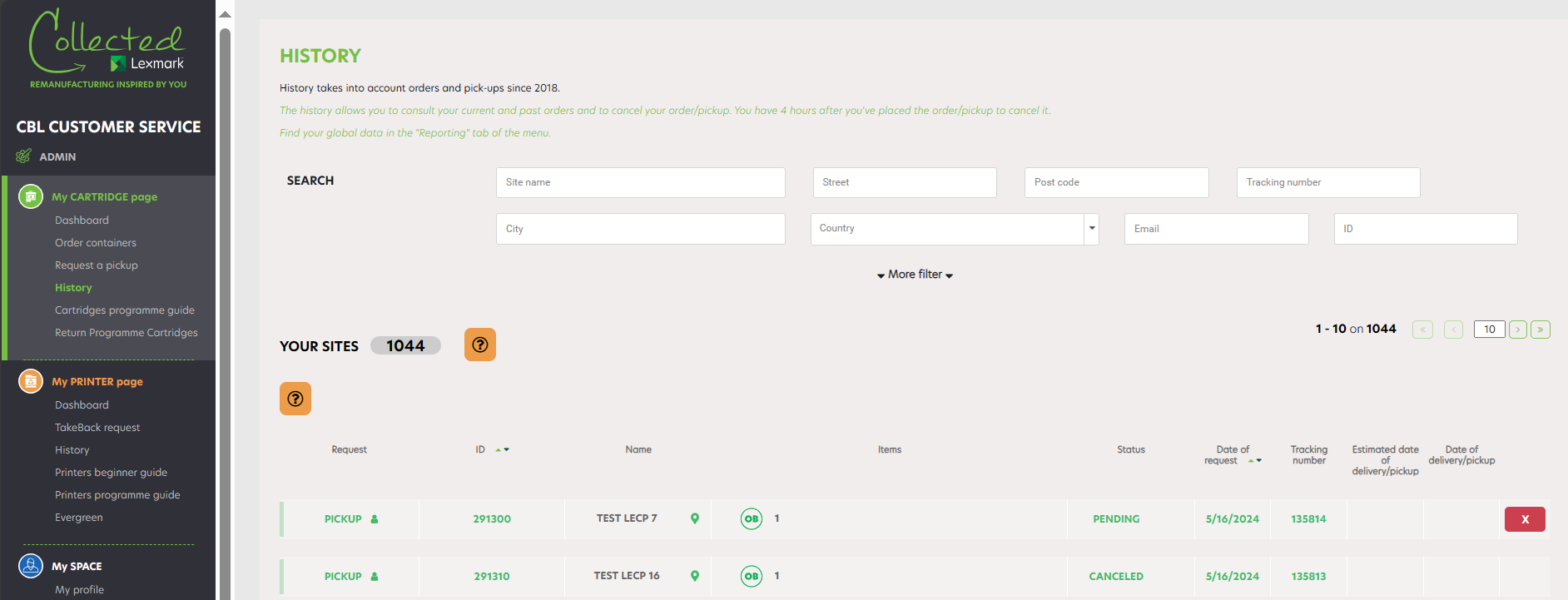
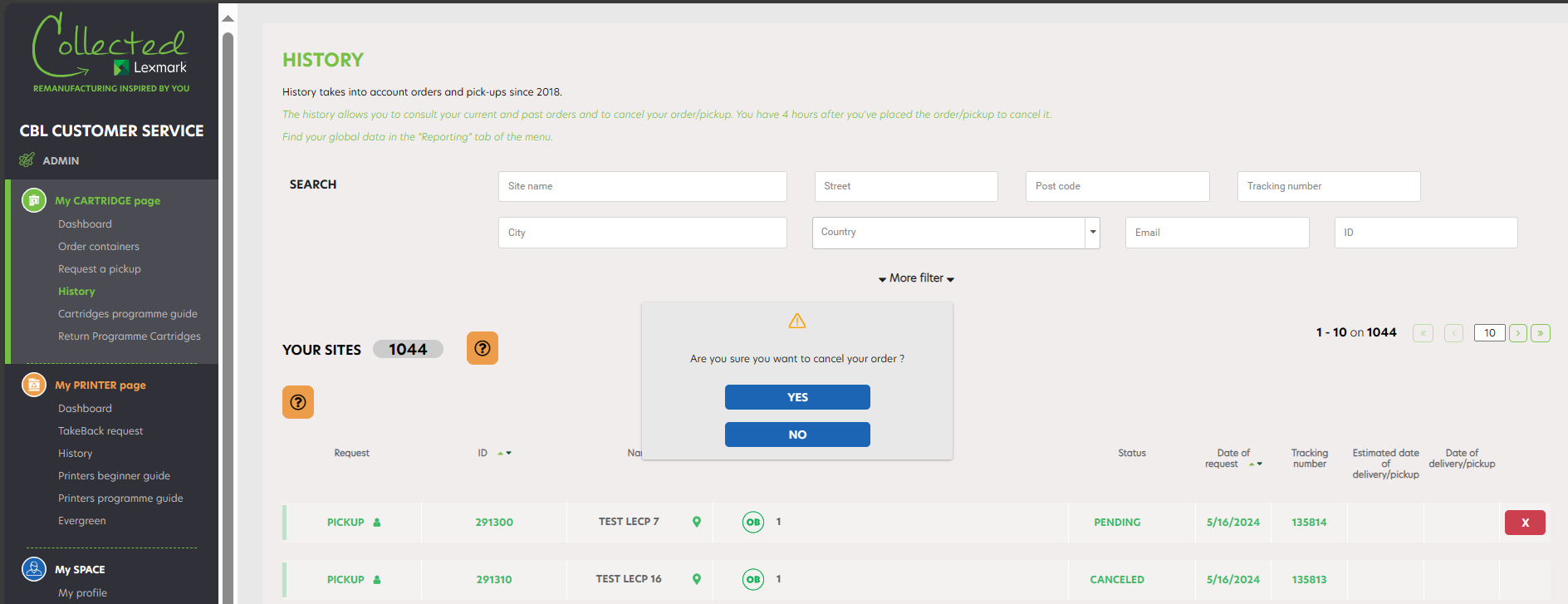
Puteți să anulați o colectare de containere doar dacă respectiva colectare are stadiul „în curs”. „Faceți clic pe „Istoric”: ultimele dumneavoastră solicitări sunt afișate primele. Puteți să anulați orice solicitare de colectare având stadiul „în curs”, în decurs de 4 h de la confirmarea solicitării de colectare. Pentru aceasta, faceți clic pe cruciulița roșie. Apare o fereastră de confirmare: faceți clic pe „Da”. Veți primi un e-mail de confirmare de anulare a solicitării de colectare”.
Pentru a modifica/adăuga datele colectării dumneavoastră, faceți clic pe „Unitățile mele”. Se afișează toate unitățile dumneavoastră. Motorul de căutare vă permite să găsiți rapid compania dumneavoastră: introduceți denumirea companiei dumneavoastră și codul său poștal.
Faceți clic pe „Aflați mai multe” în stânga numelui companiei dumneavoastră, pentru a afla toate informațiile privind compania dumneavoastră. Datorită motorului de căutare, puteți să găsiți cu ușurință o companie, editând numele acesteia și codul său poștal. Apoi faceți clic pe: „Vizualizare/modificare” de lângă „Informații privind ridicarea”.
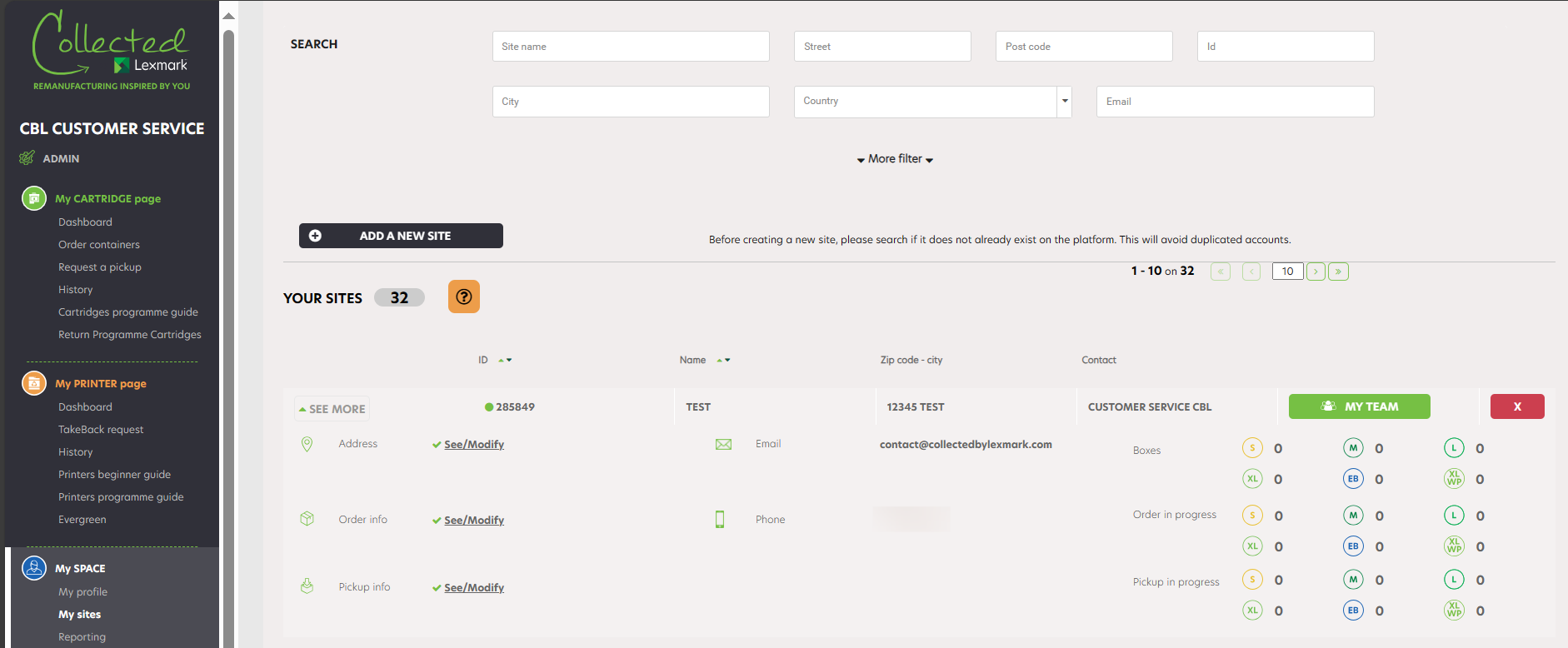
Deschideți meniul derulant al companiei respective: veți vedea toate informațiile legate de această locaţie.
Faceți clic pe „Informații privind colectarea”: „Vizualizare/modificare”.
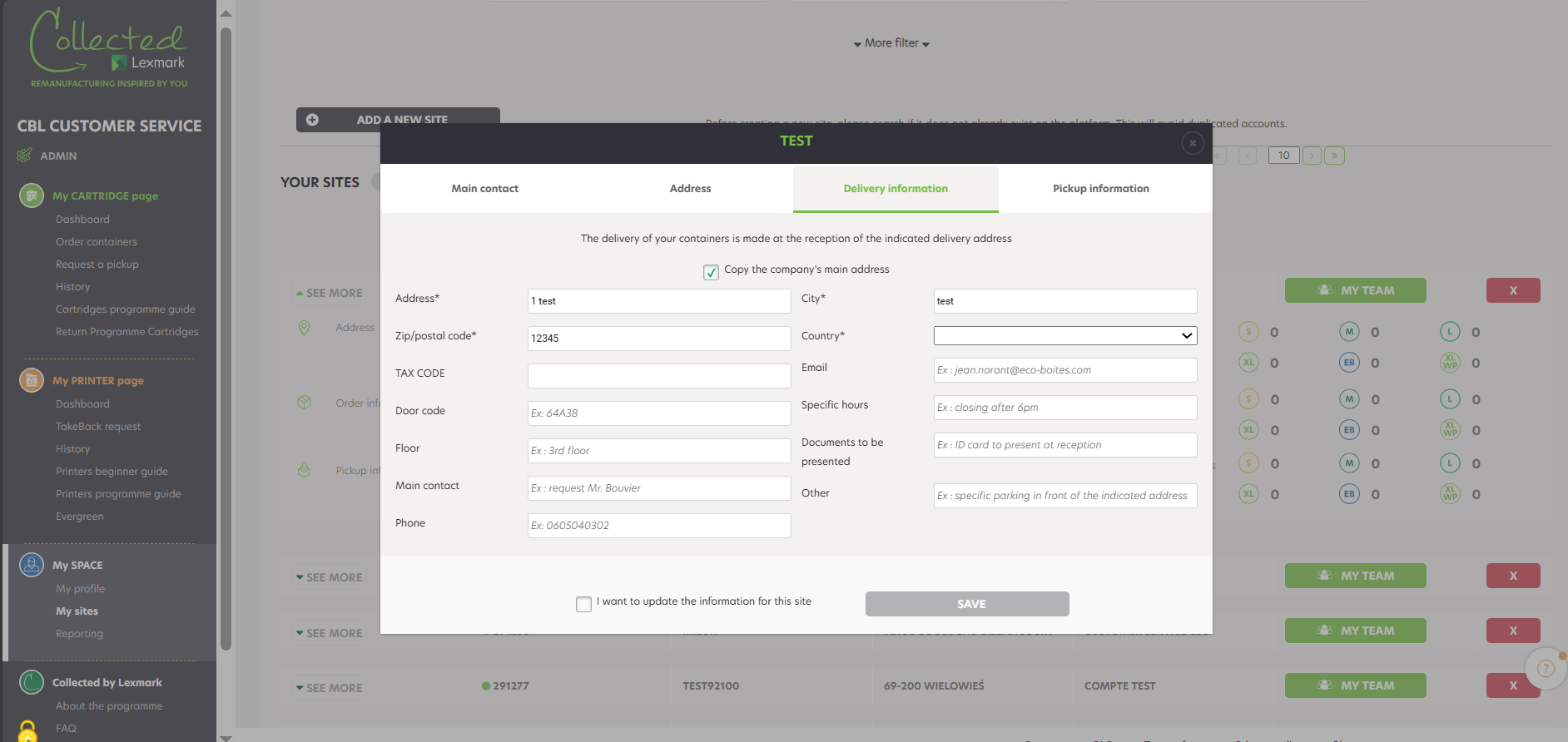
Se deschide o fereastră: faceți clic pe tab-ul „Informații privind colectarea”. Vă atragem atenția asupra faptului că majoritatea furnizorilor noștri de servicii recuperează containerele dumneavoastră de la parterul companiei dumneavoastră. Vă rugăm să informați despre acest lucru persoana însărcinată cu primirea transportatorului. Este posibil ca transportatorul să aibă nevoie să contacteze persoana menționată în rubrica „Informații privind colectarea”: vă rugăm să indicați datele acesteia de contact.
Bifați căsuța „Vreau să actualizez informațiile pentru această unitate” înainte de a face clic pe „Salvare”. Informațiile privind ridicarea sunt actualizate automat.
Dacă nu reușiți să solicitați co colectare de containere, vă invităm:
- Să verificați dacă o colectare nu este deja în curs pe unitatea dumneavoastră. În acest caz, după ce colectarea s-a efectuat, veți putea să solicitați una nou, dacă e necesar.
- Verificați ca datele dumneavoastră de livrare să fie actuale. Pentru aceasta, mergeți în rubrica „Unitățile mele” și faceți clic pe „Modificare”, în dreptul locaţiei respective. Veți putea atunci să introduceți datele de livrare necesare pentru colectare.
- În fine, verificați dacă există containere în locaţia dumneavoastră.
Dacă, cu toate acestea, tot nu reușiți să efectuați o comandă de containere, vă rugăm să ne contactați prin intermediul formularului de contact.
Înainte de a solicita o colectare de containere, vă prezentăm câteva prevederi care trebuie respectate:
- Aveți grijă să respectați capacitatea volumetrică a containerului dumneavoastră. Nu-l supraîncărcați cu cartușe uzate, astfel încât să fie posibilă închiderea capacului containerului.
- Ambalați cartușele uzate în ambalajul lor original înainte de a le pune în container.
- Nu acoperiți sau ascundeți Numărul de identificare a cutiei (codul de bare de pe container).
- Ambalați doar cartușe Lexmark consumate. Niciun alt deșeu nu poate fi transportat.
- Păstrați containerul dumneavoastră în interior, într-un loc uscat, pentru a evita degradarea sa.
- Containerele din cadrul programului Collected by Lexmark servesc la colectarea cartușelor Lexmark sau eligibile, așa cum sunt definite în Condițiile Generale de Utilizare. Niciun alt deșeu nu trebuie să fie depozitat în container, în caz contrar se aplică sancțiuni.
Ecobox este un program poștal dedicat filialelor, agențiilor mici sau magazinelor care au un spațiu foarte limitat și care consumă între 10 și 40 de cartușe pe an. Cutia Eco poate conține maximum cinci cartușe, iar transportul poștal este preplătit de Lexmark. Odată ce cutia este plină, este suficient să o lăsați la cel mai apropiat oficiu poștal.
Programul eco-box face parte din programul standard de containere Collected by Lexmark, dar utilizarea eco-box-ului de către companii trebuie să fie aprobată în prealabil de Lexmark. Pentru a vă înscrie în acest program, vă rugăm să contactați echipa Lexmark: Fluxul de containere LCCP container_lccp@lexmark.com
S box este un program dedicat filialelor, agențiilor mici sau magazinelor care au un spațiu foarte limitat și care consumă între 10 și 40 de cartușe pe an. S box poate conține maximum cinci cartușe, iar transportul este preplătit de Lexmark. Odată ce o cutie este plină, vă rugăm să înregistrați cererea de colectare în collectbylexmark.com, iar partenerul nostru logistic o va ridica la adresa indicată.
Programul S face parte din programul standard de containere Colectat de Lexmark, dar utilizarea cutiei S de către companii trebuie să fie aprobată în prealabil de Lexmark. Pentru a vă înscrie în acest program, vă rugăm să contactați echipa Lexmark: Container flow LCCP container_lccp@lexmark.com
Programul Collected by Lexmark pentru persoane fizice este un program de colectare a cartușelor Lexmark pentru clienții rezidențiali care consumă mai puțin de 5 cartușe pe an. Facilitează gestionarea colectării cartușelor la sfârșitul vieții și ajută la refacerea acestora înainte de a fi reciclate complet. Programul Collected by Lexmark ajută participarea clienților noștri în economia circulară.
Programul Collected by Lexmark este destinat persoanelor fizice (consum de mai puțin de 5 cartușe pe an) care doresc să facă parte dintr-o abordare a economiei circulare, ajutând la refolosirea, refacerea cartușelor Lexmark folosite, mai degrabă decât aruncarea lor doar în punctele locale de reciclare. Prin participarea la acest program, utilizatorul se angajează să:
- Returnați cartușele eligibile (așa cum sunt definite în Termenii de utilizare) către Lexmark pentru recuperare în conformitate cu acești Termeni și condiții.
- Respectați cerințele de reglementare pentru DEEE (deșeuri din echipamente electrice și electronice) pentru orice cartuș care nu ar fi returnat la Lexmark.
- A fi persoană fizică (programul Collected by Lexmark pentru persoane fizice este strict interzis companiilor)
- Pentru a locui în Europa (Grecia și Turcia nu sunt incluse)
- Pentru a partaja cu Lexmark datele dvs. de contact în scopul livrării containerului la adresa corectă
- Pentru a utiliza cartușele eligibile Lexmark (așa cum sunt definite în Termenii de utilizare)
- Pentru a utiliza containerele Lexmark pentru a colecta cartușele goale
- Pentru a nu arunca niciun alt obiect sau deșeuri în containerul Lexmark
- Pentru a consuma mai puțin de 5 cartușe pe an
Lexmark face pași mari în conservarea resurselor, ajutându-vă în același timp să reduceți deșeurile. Programul Collected by Lexmark vine în completarea obligațiilor noastre legale.
Clienții noștri își pot lăsa cartușele la cele mai apropiate puncte de colectare DEEE, dar dacă doresc să joace un rol activ în economia circulară, pot sprijini acest program.
Împreună, putem contribui la combaterea penuriei de resurse și la creșterea numărului de produse recondiționate. Prin urmare, programul nostru de economie circulară este construit pentru retururi în vrac, nu pentru retururi individuale, pentru a rămâne în concordanță cu conservarea mediului.
Oferirea unei singure etichete de retur ar însemna mai multă hârtie de imprimantă și materiale plastice, mai mult transport, deci mai multă poluare.
În schimb, Lexmark oferă utilizatorilor individuali o cutie mică în care pot încăpea până la 4 cartușe. Este opțiunea de recipient mic pentru consumatorii care doresc să favorizeze reutilizarea în locul reciclării.
Referințele imprimantei (numărul de serie al imprimantei) se află în interiorul capacului imprimantei atunci când îl deschideți pentru a vă schimba cartușele sau în partea din spate a imprimantei.
Acesta trebuie să conțină:
- Exact 13 cifre în lungime (dacă cel pe care îl aveți nu este, adăugați „0” pentru ca numărul să aibă 13 cifre în lungime)
- Primele 5 cifre trebuie să fie numere
- Ultimele 8 cifre pot fi o combinație de număr și literă
Numărul de piesă al cartușului poate fi găsit pe carcasa cartușului.
Acesta trebuie să conțină:
- Acest număr de serie trebuie să aibă cel puțin 7 caractere și cel mult 8 cifre
- Aceste 7 sau 8 cifre pot fi o combinație de numere și litere (0-9, A-Z)
Pentru cutiile ecologice, Lexmark nu mai furnizează etichete poștale individuale preplătite, ci favorizează expedierile grupate pentru a reduce impactul logistic. Utilizatorii individuali din DE/UK/ FR pot beneficia de programul Ecobox. Această cutie mică poate conține 1 cartuș mare sau până la 4 cartușe Lexmark mai mici. Vă rugăm să vă înregistrați la collectedbylexmark.com pentru a vă comanda cutia. Noi o vom livra gratuit la adresa dumneavoastră. După ce ați umplut-o, pur și simplu duceți-o la cel mai apropiat oficiu poștal. Transportul este preplătit de Lexmark.
Utilizatorii individuali pot, de asemenea, să își depună cartușele la cel mai apropiat punct de colectare DEEE, dar nu vor participa la economia circulară.
Pentru cutiile mici, Lexmark nu mai furnizează etichete poștale individuale preplătite, ci favorizează expedierile grupate pentru a reduce impactul logistic. Persoanele fizice din toate țările europene, cu excepția DE/UK/ FR, pot beneficia de programul cutiilor mici. Această cutie mică poate conține 1 cartuș mare sau până la 4 cartușe Lexmark mai mici. Vă rugăm să vă înregistrați la collectedbylexmark.com pentru a vă comanda cutia. Noi o vom livra gratuit la adresa dumneavoastră. După ce ați umplut-o, vă rugăm să înregistrați cererea de colectare în collectedbylexmark.com și partenerul nostru logistic o va ridica la adresa indicată. Transportul este preplătit de Lexmark și este gratuit pentru utilizatorii individuali.
Utilizatorii individuali pot, de asemenea, să își depună cartușele la cel mai apropiat punct de colectare DEEE, dar nu vor participa la economia circulară.
Pentru a comanda o cutie nouă pentru cartușele dvs., faceți clic pe „ Comandați containere ” în bara laterală sau în tabloul dvs. de bord.
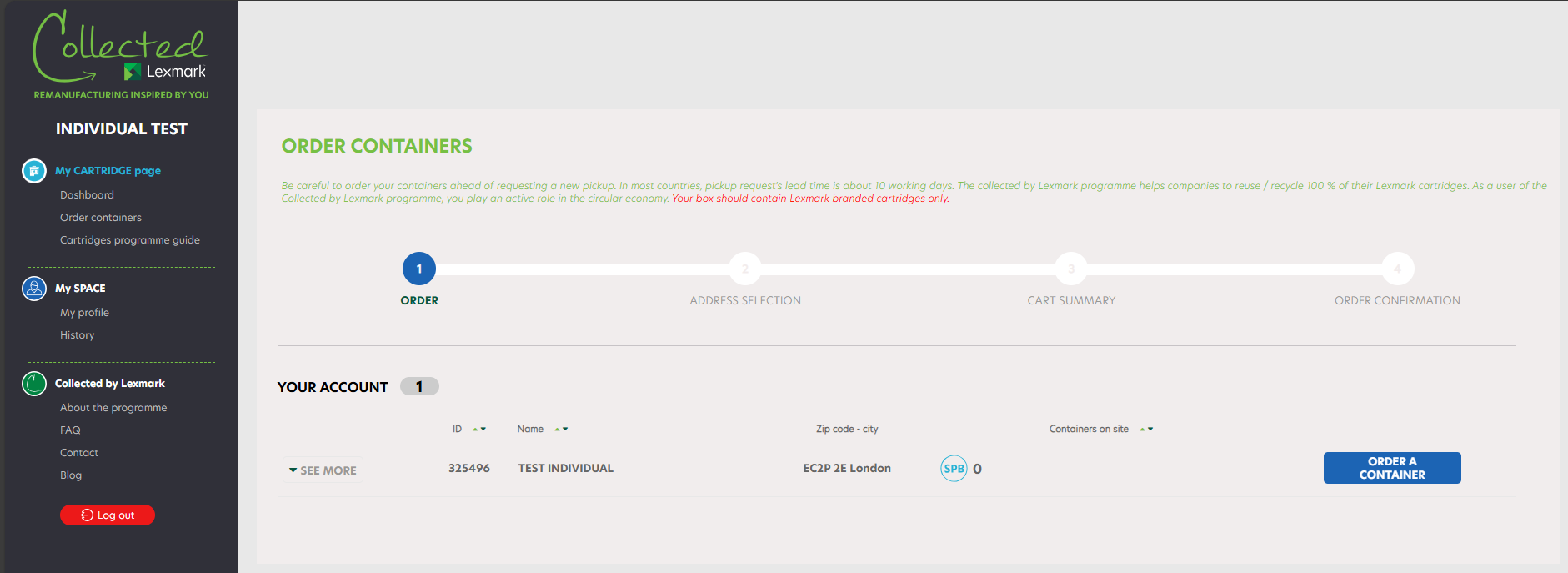
În etapa a doua a procesului, puteți confirma și selecta adresa de livrare:
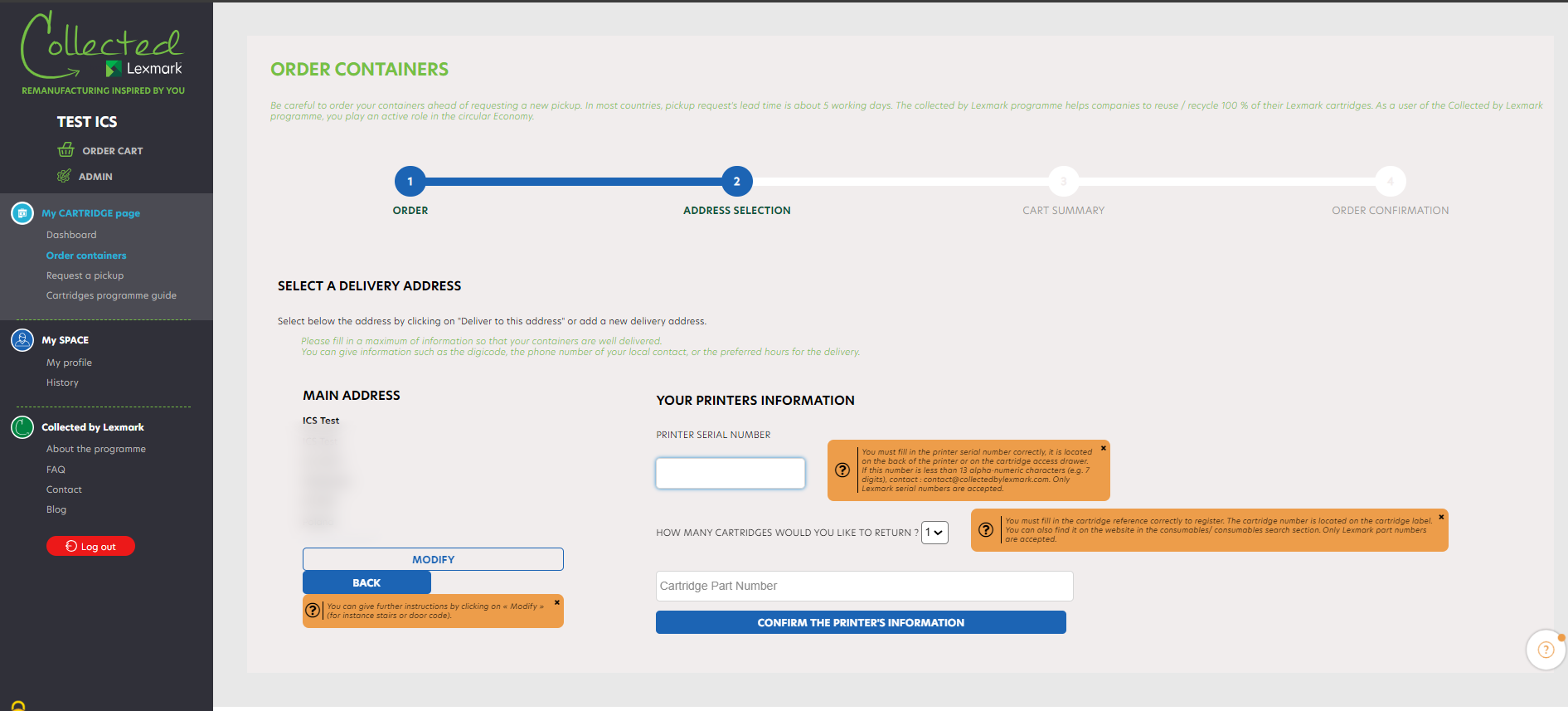
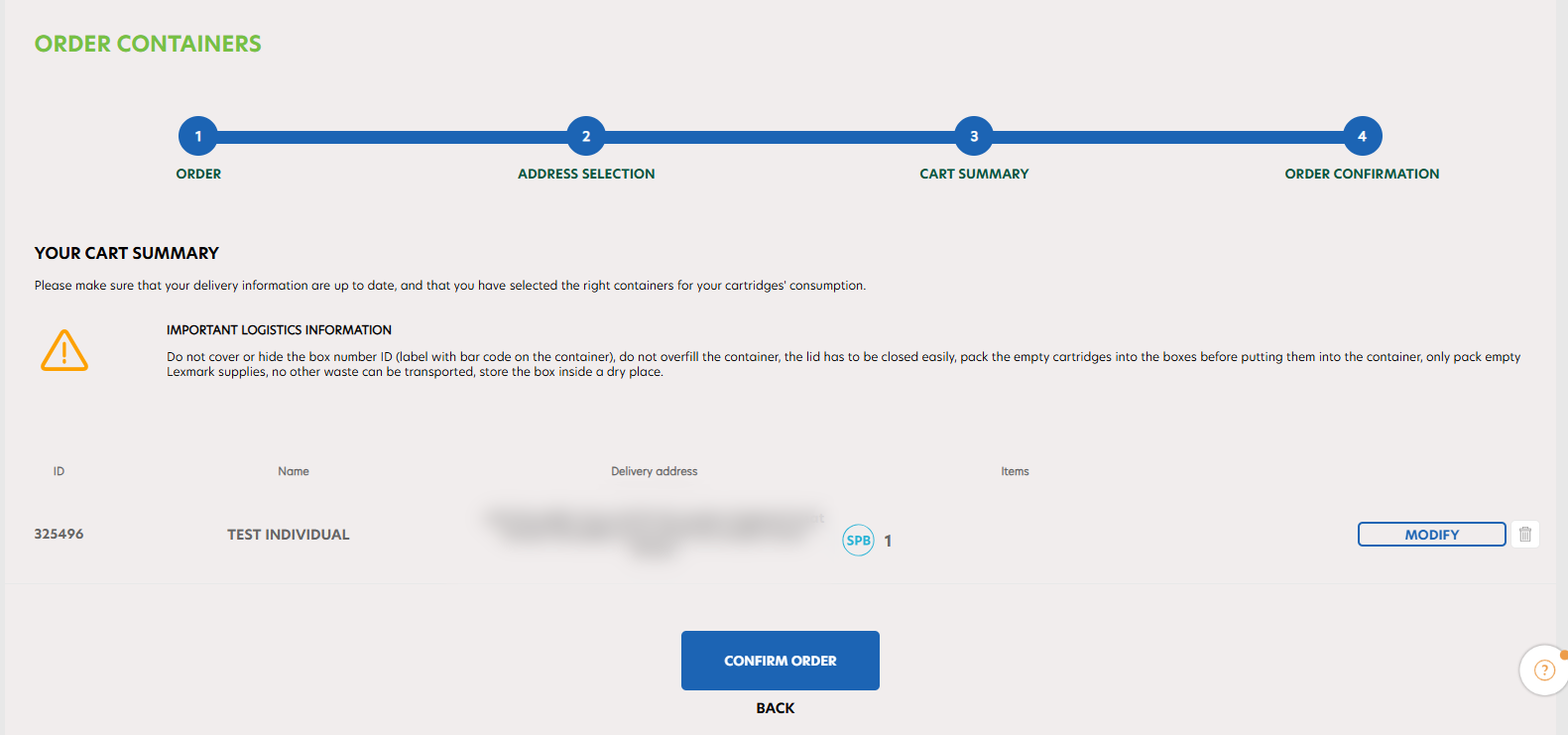
The first time you order a container, you will be asked to confirm your address and enter your printer and cartridge information. Once this has been completed, you can proceed to step 3 and review your cart summary.
Finally, you can confirm your order and all that’s left is to wait for your collection box to arrive:
Trebuie să solicitați o colectare a cutiei dvs. făcând clic pe „ Request a pickup ” în bara laterală. Urmați pașii similari cu procesul de comandă a cutiei și așteptați ca echipa noastră de transport să vină să vă ridice cutia completă.
Pagina de „raportare” este instrumentul standardizat al programului de colectare a cartușelor (LCCP). Aceasta oferă o imagine de ansamblu personalizată a contribuției dvs. estimate la economia circulară, pe baza cartușelor pe care le-ați returnat prin intermediul programului.
Pe această pagină, un raport eco detailat este disponibil pentru a vă oferi numărul exact de cartuşe colectate şi apoi reciclate sau refolosite. Reducerea emisiilor de Co² realizată astfel este automat calculată. Pentru a obţine un raport eco vă rugăm să apăsaţi pe “solicitare raport eco”. Vom procesa cererea dvs. cât mai curând posibil.
RUBRICILE FAQ
« COLLECTED BY LEXMARK » EQUIPMENT PROGRAMME
To register
To log in
My account
Ask for a printer pickup
Managing multi-sites section
Evergreen
Carbon Indicator
The Collected by Lexmark programme has two different programmes : LCCP, for the collection of Cartridges and LECP for collection of Printers.
LECP is a Lexmark Printers Collection Programme. It facilitates the collection management of the printers at their end of life and helps their remanufacturing before they are fully recycled. Printers are either remanufactured or dismantled for usable parts.
The Collected by Lexmark programme enhances all stakeholders corporate social responsability’s strategy and helps the participation of our customers in the circular economy.
The LECP is for businesses that want to be part of a circular economy approach by remanufacturing / recycling used Lexmark printers or it’s parts. By participating in this programme, the company is committed to :
- Return the eligible printers (as defined in the eligibility list) to Lexmark for recovery in accordance with these Terms and Conditions.
- Inform the people within their company (who manage used consumables) of their participation in this programme.
- Comply with regulatory requirements for WEEE (Waste from Electrical and Electronic Equipment) for any printer that would not be returned to Lexmark.
- To be a private or public company and to have a national authentication number
- To be a company located in Europe
- To share with Lexmark a contact representing the company that will manage the programme
To register for the LECP, visit https://www.collectedbylexmark.com/registration and click on « Create new account ». You will then be redirected to the registration form. Be sure to enter a professional email address so that your registration is validated.
When registering an account, you can only add a single location. You will need to complete the below form with your personal details and the company’s information. When filling in the company’s address, google API automatically suggests addresses from its database (auto-completion process).
If your company is already enrolled in the programme, you will not be able to register it a second time. We will send you the contact of the person that is already registered in your company.
Nota bene : to add a new location on top of existing ones or update a company profile, do not use the sign in « Create new account » button. You need to connect and go to my sites.
Please check that :
- You are eligible to the programme
- The email address entered is a professional email address
- You have filled all the compulsory fields
If your company is already registered in the programme, we will send you the contact of the person that is already registered in your company. If this person is no longer working in your company or has changed role, please contact us via the contact form with your e-mail address to become the main contact.
If your company is already registered and if you have not yet activated your password, or if you have forgotten your password, click on « Forgot your password ? » on the homepage to be redirected to the password reset form.
After having entered your email address, you will receive by email the link to set a new password.
The link will be active for the next 24 hours. Think about checking your spams.
To change your password, go to « My profile » section of your account. You can change your password there.
To log in to your LECP account, verify that the entered email address is correct, as well as the associated password.
To log in to your LECP account, enter the email address and password you chose when registering to the programme, then click on « LOG IN ».
When adding a new location on top of existing ones or updating a company profile, do not use the sign in button. You need to connect to your account and go to my sites once connected.
Once you’re connected, you have access to your dashboard. The menu, on the left, helps you to navigate on the platform.
To change your personal information, go to « My profile » section of your account. You can change the following information :
- Name
- First Name
- Phone Number (landline and mobile)
- Password
To make the changes, you need to click on the green icon. The changes will be saved automatically. The email being the log in unique ID, it can only be modified by an admin, please contact us in case you need to change it.
Did your company move ? If you want to update your company’s new address, we invite you to contact us through the contact form.
Lexmark understands the importance of respecting the personal information that is processed and we are committed to protecting the data you entrust to us. For more information, read our Privacy Policy.
If you can’t find the answer to your question in this FAQ, we invite you to contact us via the dedicated contact form.
To set up, modify or complete your pickup information, click on « My sites ». The list of your companies is displayed. Thanks to the search engine you can easily find a company by typing its name and its zipcode.
Click on « See more » on the left of your company name to find all the information regarding your company. Thanks to the search engine you can easily find a company by typing its name and its zip code. Then click on : « See/modify » next to « Pickup Info ».
Open the pulldown menu of your company : you find all the information regarding your company. Click on « Pickup infos »: « See/modify ». A window appears : click on the « Pickup information » tab. You can update your pickup information : pickup address (if different from your registered company profile) : the door code, floor, name and details of the contact who will be on site during the pickup, opening hours, specific information…
The carrier may need to contact the person mentioned in the « Pickup information » tab. Please specify his/her phone number and email.
Tick the box « I want to update the information for this site » before click on « Save ». Your pickup information is automatically updated.
To request a Takeback of your printer for your company, click on « Request a Take Back». The list of your companies is displayed. Thanks to the search engine, you can easily find a company by typing its name and its zipcode.
If a Takeback is already in progress for this company, you will not be able to request a new one until your collection has been done. After clicking on « Select this site », you reach on the second step of the process where you can select the quantity and the printer model, the dimensions of your pallets that have to be collected (5 containers per size and per collection maximum). On the top you can see your company information. Click on « Confirm Pickup » to go to the next step. You can see at which step of the pickup process you are with the progression bar.
You can modify or delete the request at the last confirmation stage.
Select the chosen company by clicking on « Select this site ». You can check the information about your companies by clicking on the button « See more » on the left. You might see one icon : At step number 3, you access to your delivery details (company name, administrative address and company’s pickup address). You can modify the pickup address simply by clicking on « Modify », and go on with the process by clicking on « Collect at this address ».
At step 4 you find your pickup request details (company name, number of containers to be picked up). You can modify your request or delete it by clicking on the bin. Once you’ve clicked on « Confirm pickup », your pickup request is sent.
Once your pickup request is processed, you receive an order confirmation email with the details of your pickup within 24h. You can modify or delete your request within the next 4 hours on the History page.
During each step of this process you can go back to the previous step by clicking on the « Back » button. Moreover, if you go back to the first step, your order is still present on your cart. Therefore, you can resume your pickup at any time.
As soon as you have printers to be collected, you can request a pickup by LECP. Be careful : if a pickup request is already in progress for your company, you will not be able to make a new one.
Check that the email is not in your spam. After 24H, should you not receive any email, please contact us via the contact form.
To track the progress of your pickup request, click on « History ». Thanks to the search engine you can easily find a company by typing its name and its zipcode.
- « Pending » status : the request has been registered.
- « Unvalidated » status: the request hasn’t been canceled by the user within 4 hours, now the admin needs to validate it.
- « Confirmed » status : the pickup has been confirmed and is under preparation; it will be processed within 5 days. The tracking number of your pickup appears as soon as your collection is confirmed.
- « Ready to collect » status : the pickup date is confirmed.
- « Collected » status : the pickup was done within your company.
- « Received by Lexmark » status : the printers have been received by Lexmark
- « Canceled » status : the pickup has been canceled.
- « Denied » status : The pickup could not be done because there was nothing to collect or customer did not contact the logistics team to give his instructions knlux.lccp_reverselogistics@kuehne-nagel.com
- « Failed » status : the pickup has failed – ( for example, no one was on site to give the printers, or there were internal issues that occurred on the carrier’s side, such as the printer and pallet got damaged…). In this case, please contact our logistics team : knlux.lccp_reverselogistics@kuehne-nagel.com
- « On hold » status : The pickup has been unsuccessful, the customer receives an email and has 14 days to contact the logistics team.
You can cancel a pickup request if your pickup has the « Pending » status.
Click on « History » : your latest actions appear first. You can cancel any container request having the « Pending » status, in the next 4 hours after you’ve done your request.
To do so, click on the red cross. A confirmation window appears : click on « Yes » . You will receive an email confirmation of cancellation.
If you are unable to request a pickup, we invite you to:
- Check that a pickup is not already in progress for your site. In this case, once the pickup will be effective, you’ll be able to request a new container pickup.
- Check that your pickup information is up to date. To do this, go to « My sites » section and click on « Edit », in front of the concerned site. You will then be able to enter the pickup information needed for the pickup.
- Finally check that you have printers and pallets on your site. If you do not have pallet on site, please inform us in the pickup process.
However, should this situation continue, please contact us via the contact form.
Before asking for a pickup of your printer, here are some guidelines to follow :
- Printers must be in good condition. They are collected to be reused. Either dismantled to spare parts or remanufactured as a complete printer.
- All components must be inside the printer.
- Only intact pallets to be used.
- Place the products on a pallet, which is slightly larger than the unit’s maximum length and width. Printer should not overlap the pallet.
- Do not place printers on wheels on a pallet. Rather ask for special equipment (lashing strap/cargo bar) when you submit your Takeback request. There is no extra cost of lashing strap/cargo bar request.
- If you stack the products do not exceed the maximum height of 150 cm and pay attention to secure strapping of the products to the pallet. In case of stacking, minimal packaging is required ie. Bubble wrap or a thin foam layer around the printers to hold the pallet content together.
- Stacking an MFP (printer with scanner) is not allowed.
To request a Takeback of your printer for your company, click on « Request a Take Back». The list of your companies is displayed. Thanks to the search engine, you can easily find a company by typing its name and its zipcode.
If a Takeback is already in progress for this company, you will not be able to request a new one until your collection has been done. After clicking on « Select this site », you reach on the second step of the process where you can select the quantity and the printer model, the dimensions of your pallets that have to be collected (5 containers per size and per collection maximum). On the top you can see your company information. Click on « Confirm Pickup » to go to the next step. You can see at which step of the pickup process you are with the progression bar.
You can modify or delete the request at the last confirmation stage.
Select the chosen company by clicking on « Select this site ». You can check the information about your companies by clicking on the button « See more » on the left. You might see one icon : At step number 3, you access to your delivery details (company name, administrative address and company’s pickup address). You can modify the pickup address simply by clicking on « Modify », and go on with the process by clicking on « Collect at this address ».
At step 4 you find your pickup request details (company name, number of containers to be picked up). You can modify your request or delete it by clicking on the bin. Once you’ve clicked on « Confirm pickup », your pickup request is sent.
Once your pickup request is processed, you receive an order confirmation email with the details of your pickup within 24h. You can modify or delete your request within the next 4 hours on the History page.
During each step of this process you can go back to the previous step by clicking on the « Back » button. Moreover, if you go back to the first step, your order is still present on your cart. Therefore, you can resume your pickup at any time.
To request a Takeback of your printer for your company, click on « Request a Take Back». The list of your companies is displayed. Thanks to the search engine, you can easily find a company by typing its name and its zipcode.
If a Takeback is already in progress for this company, you will not be able to request a new one until your collection has been done. After clicking on « Select this site », you reach on the second step of the process where you can select the quantity and the printer model, the dimensions of your pallets that have to be collected (5 containers per size and per collection maximum). On the top you can see your company information. Click on « Confirm Pickup » to go to the next step. You can see at which step of the pickup process you are with the progression bar.
You can modify or delete the request at the last confirmation stage.
Select the chosen company by clicking on « Select this site ». You can check the information about your companies by clicking on the button « See more » on the left. You might see one icon : At step number 3, you access to your delivery details (company name, administrative address and company’s pickup address). You can modify the pickup address simply by clicking on « Modify », and go on with the process by clicking on « Collect at this address ».
At step 4 you find your pickup request details (company name, number of containers to be picked up). You can modify your request or delete it by clicking on the bin. Once you’ve clicked on « Confirm pickup », your pickup request is sent.
Once your pickup request is processed, you receive an order confirmation email with the details of your pickup within 24h. You can modify or delete your request within the next 4 hours on the History page.
During each step of this process you can go back to the previous step by clicking on the « Back » button. Moreover, if you go back to the first step, your order is still present on your cart. Therefore, you can resume your pickup at any time.
As soon as you have printers to be collected, you can request a pickup by LECP. Be careful : if a pickup request is already in progress for your company, you will not be able to make a new one.
Check that the email is not in your spam. After 24H, should you not receive any email, please contact us via the contact form.
To track the progress of your pickup request, click on « History ». Thanks to the search engine you can easily find a company by typing its name and its zipcode.
- « Pending » status : the request has been registered.
- « Unvalidated » status: the request hasn’t been canceled by the user within 4 hours, now the admin needs to validate it.
- « Confirmed » status : the pickup has been confirmed and is under preparation; it will be processed within 5 days. The tracking number of your pickup appears as soon as your collection is confirmed.
- « Ready to collect » status : the pickup date is confirmed.
- « Collected » status : the pickup was done within your company.
- « Received by Lexmark » status : the printers have been received by Lexmark
- « Canceled » status : the pickup has been canceled.
- « Denied » status : The pickup could not be done because there was nothing to collect or customer did not contact the logistics team to give his instructions knlux.lccp_reverselogistics@kuehne-nagel.com
- « Failed » status : the pickup has failed – ( for example, no one was on site to give the printers, or there were internal issues that occurred on the carrier’s side, such as the printer and pallet got damaged…). In this case, please contact our logistics team : knlux.lccp_reverselogistics@kuehne-nagel.com
- « On hold » status : The pickup has been unsuccessful, the customer receives an email and has 14 days to contact the logistics team.
You can cancel a pickup request if your pickup has the « Pending » status.
Click on « History » : your latest actions appear first. You can cancel any container request having the « Pending » status, in the next 4 hours after you’ve done your request.
To do so, click on the red cross. A confirmation window appears : click on « Yes » . You will receive an email confirmation of cancellation.
If you are unable to request a pickup, we invite you to:
- Check that a pickup is not already in progress for your site. In this case, once the pickup will be effective, you’ll be able to request a new container pickup.
- Check that your pickup information is up to date. To do this, go to « My sites » section and click on « Edit », in front of the concerned site. You will then be able to enter the pickup information needed for the pickup.
- Finally check that you have printers and pallets on your site. If you do not have pallet on site, please inform us in the pickup process.
However, should this situation continue, please contact us via the contact form.
Before asking for a pickup of your printer, here are some guidelines to follow :
- Printers must be in good condition. They are collected to be reused. Either dismantled to spare parts or remanufactured as a complete printer.
- All components must be inside the printer.
- Only intact pallets to be used.
- Place the products on a pallet, which is slightly larger than the unit’s maximum length and width. Printer should not overlap the pallet.
- Do not place printers on wheels on a pallet. Rather ask for special equipment (lashing strap/cargo bar) when you submit your Takeback request. There is no extra cost of lashing strap/cargo bar request.
- If you stack the products do not exceed the maximum height of 150 cm and pay attention to secure strapping of the products to the pallet. In case of stacking, minimal packaging is required ie. Bubble wrap or a thin foam layer around the printers to hold the pallet content together.
- Stacking an MFP (printer with scanner) is not allowed.
To request a Takeback of your printer for your company, click on « Request a Take Back». The list of your companies is displayed. Thanks to the search engine, you can easily find a company by typing its name and its zipcode.
If a Takeback is already in progress for this company, you will not be able to request a new one until your collection has been done. After clicking on « Select this site », you reach on the second step of the process where you can select the quantity and the printer model, the dimensions of your pallets that have to be collected (5 containers per size and per collection maximum). On the top you can see your company information. Click on « Confirm Pickup » to go to the next step. You can see at which step of the pickup process you are with the progression bar.
You can modify or delete the request at the last confirmation stage.
Select the chosen company by clicking on « Select this site ». You can check the information about your companies by clicking on the button « See more » on the left. You might see one icon : At step number 3, you access to your delivery details (company name, administrative address and company’s pickup address). You can modify the pickup address simply by clicking on « Modify », and go on with the process by clicking on « Collect at this address ».
At step 4 you find your pickup request details (company name, number of containers to be picked up). You can modify your request or delete it by clicking on the bin. Once you’ve clicked on « Confirm pickup », your pickup request is sent.
Once your pickup request is processed, you receive an order confirmation email with the details of your pickup within 24h. You can modify or delete your request within the next 4 hours on the History page.
During each step of this process you can go back to the previous step by clicking on the « Back » button. Moreover, if you go back to the first step, your order is still present on your cart. Therefore, you can resume your pickup at any time.
When you click on « My Sites », you have a display of all the companies associated with your account. You can delete a company by clicking on the red cross, or add a new company by clicking on « Add a new site ».
You only have to fill in the new company name, address. The Google API will automatically suggest addresses and if you select one, it will be automatically filled in.
The list of your sites is displayed. If you have multiple sites, you can search for a specific site with the improved search engine. You can search by site name, street, postcode, company ID, city, country code or email. You can also view sites for which an order or pickup is in progress.
In « My Sites » section, you can see your company details by clicking on the arrow or the button « SEE MORE » , located at the left of your company name.
You can see or update your pickup information : click on « See/Modify ». This information is important to inform our carriers. You can fill in a maximum of information such as the door codes, specific local contact information like the receptionist’s contact details or the required documents…
To be able to request a Take Back, an address must be filled in. If you want the pickup information to be the same as the administrative information, you can tick the box „copy the company’s main address”.
From the section « My Sites », you will be able to manage your own team if you are the main contact, and compose it with the people that manage the same site as you. In order to create your team, you have to click on « MY TEAM ».
A new page will appear. The main contacts are displayed with the yellow star. You have a full visibility of the other team members who are able to request a Take Back for this specific company. For one company, you can have a team of several members.
If you want to add a new team member to your team, first you have to make sure that the member you want to add is not yet registered in the database. You have to search by filling in the first name, last name, phone number and email address. If he/she is already registered, you can click on « ADD » ; if the user is not yet registered, you can click on « Create user if the user does not already exist » :
The team administrator can add or delete people from a team : he only needs to fill in the user information and click on « CREATE ». The user will receive an email with a link to set his password. Once done, this new user is able to log in to the platform.
If you want to set the new user as the main contact (the one with the yellow star), you have to tick the box « Is the user the main contact of the company ? ».
To find a site, go to « My sites » section of your account.
The list of your sites is displayed. If you have multiple sites, you can search for a specific site with the improved search engine. You can search by site name, street, postcode, company ID, city, country code or email. The search engine is the same for the Take Back request and history page. You can also view sites for which an order or pickup is in progress.
You can request a Take Back for different sites at once, from your dashboard, or from the left navigation menu, « Take Back ».
The list of all your sites is displayed : you can filter this list by displaying your sites alphabetically (A-Z) or by increasing or decreasing stock. The search engine at the top of the page also allows you to find a site faster.
Click on « SELECT THIS SITE » on the line matching your site.
You can choose, for each of the sites you manage, the type of containers and the quantity you want to order (from 0 to 5 maximum by container’s type).
When you have completed your requests for each site, click on your cart to finalize your global order.
Once your request has been made, you will receive an order confirmation email with the details of your request. Be careful if a request is already in progress for a given site, you will not be able to order new ones until your previous order has been delivered.
Check that the email is not in your spam. After 24H, should you not receive any email, please contact us via the contact form.
You can request a Take Back for different sites at once or for only one site, from your dashboard, or from the left navigation menu, « Take Back request ».
The list of all your sites is displayed : you can filter this list by displaying your sites alphabetically (A-Z) or by increasing or decreasing stock. The search engine at the top of the page also allows you to find a site faster.
Click on « SELECT THIS SITE » on the line corresponding to the site for which you need to place an order.
Select the type of request and the number of printers you want to be collected.
Your cart will automatically update. You can move to the next line to place a request for another site or click on your cart to finalize your pickup.
Once your pickup has been made, you will receive a pickup confirmation email with the details of your pickup.
The Evergreen offer is a program initiated by Lexmark that focuses on the remanufacturing and resale of printers. It is part of a circular economy approach where Lexmark collects end-of-life printers through their Lexmark Equipment Collection Programme (LECP) and refurbishes them through an advanced industrial remanufacturing process, ensuring that up to 90% of their parts are reused or repaired. The remanufactured printers are then made available for resale as part of the Evergreen offer. The printers also receive new hard drives, the latest software and firmware updates, and are covered by Lexmark’s guarantee for quality without compromise. For more information, please contact emeasalesops@lexmark.com
You will soon be able to purchase your remanufactured printers through your online hub. By participating in the Evergreen offer, you will not only gain access to affordable and high-quality printers but also contribute to a sustainable and environmentally friendly approach to electronic waste.
The printer should be in good shape and can still be reused. You simply need to make sure that it is registered on the Lexmark online hub and enrol in Lexmark’s equipment collection program. Then, the only thing to do is for the user to fill in some information about the product profile. Our carrier will confirm your request, and a few days later, it will be on the way to be shipped to a remanufacturing facility where it will be thoroughly checked, and many of its components will be rebuilt through an advanced industrial manufacturing process.
The remanufactured printers are then made available for resale as part of the Evergreen offer. The printers also receive new hard drives, the latest software and firmware updates, and are covered by Lexmark’s guarantee for quality without compromise. For more information, please contact emeasalesops@lexmark.com
The carbon indicator is a new feature available to all participants in Lexmark’s printer collection programme (LECP). It gives a personalized estimate of your contribution to the circular economy, based on the end-of-life printers you’ve returned through the programme.
Moreover, the carbon indicator uses carbon comparator technology to provide more than just numbers: daily equivalents put these figures into context, giving you a realistic picture of the impact of your printers.
Curious about your impact and potential savings? Explore now using the new carbon indicator!
 Descărcați ghidul de utilizare complet al imprimantei